
Elvin Knowledge Base Snippets
KB snippets provide specific answers to questions when Elvin consistently struggles with them. Use snippets only when updating documentation doesn't resolve the accuracy issues. Snippets are designed for edge cases where Elvin's response must match specific requirements.
Important: Elvin interprets snippets using AI processing. The responses won't appear word-for-word as written in the snippet. The AI will process and rephrase the content while maintaining the core information.
When to Use KB Snippets
Create a KB snippet only in these situations:
- Elvin repeatedly provides incorrect or incomplete answers to the same question across multiple conversations
- You've already updated the relevant documentation, but Elvin still doesn't provide accurate answers
- The question requires a specific response format or particular information that standard documentation can't provide
- The question addresses an edge case that doesn't fit into regular KB articles
Always attempt to improve documentation first. KB snippets should be a last resort when documentation updates don't solve the problem. Overusing snippets makes maintenance difficult and can create conflicting information in your knowledge base.
Create a Snippet from an Existing Conversation
This method lets you create a snippet directly from a conversation where Elvin provided an incorrect answer.
- Navigate to Copilot Elvin > Conversations.
- Open the conversation that contains the incorrect response.
- Locate the Elvin response you want to correct.
- Click Investigate answer below the response.
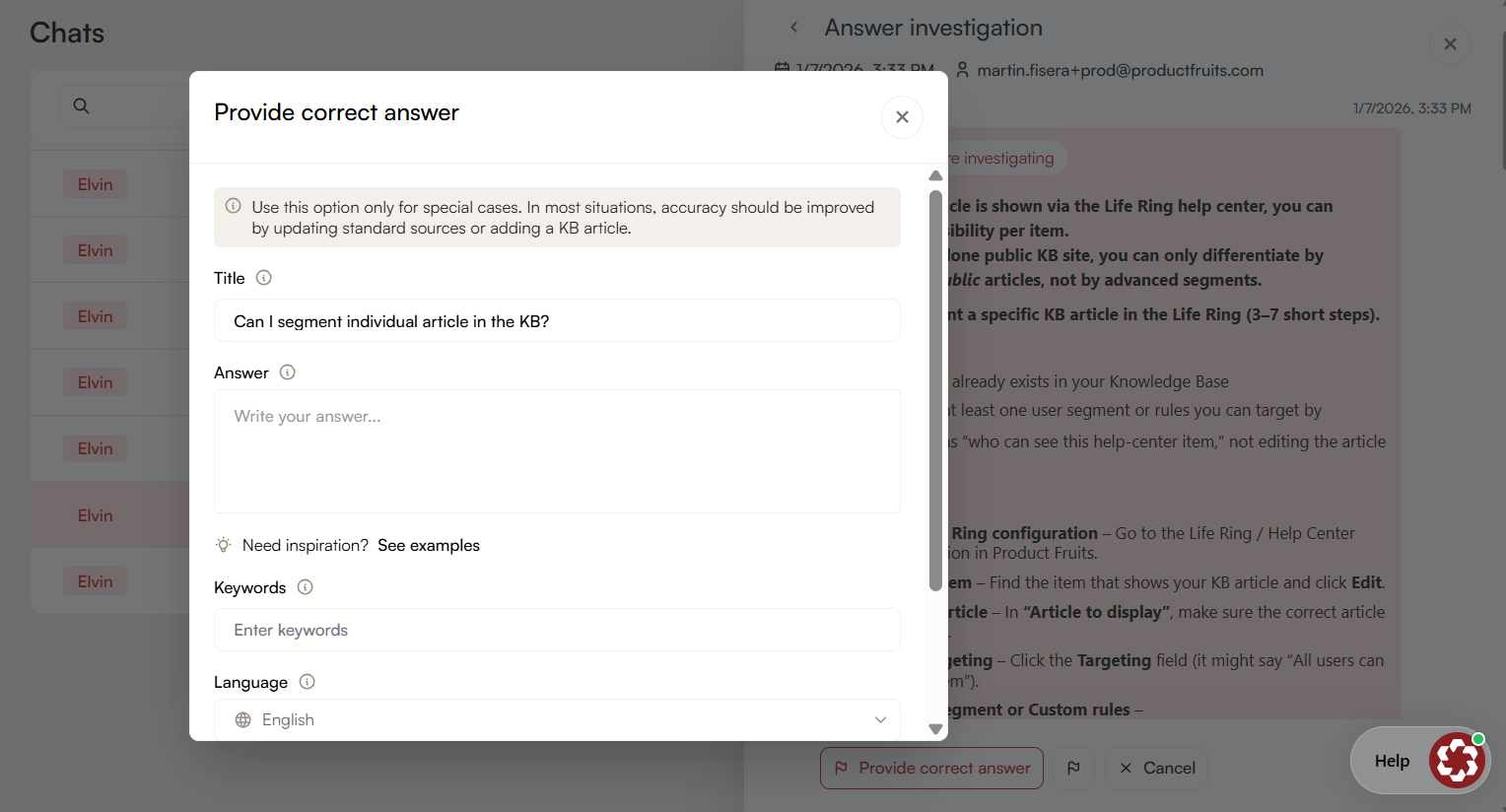
- Select Provide correct answer.
- Fill in the following fields:
- Title: Edit the prefilled question text
- Answer: Write 1-2 paragraphs with the correct response
- Keywords: Add keywords for the AI, separated by commas
- Category: Select the KB article category
- Click Save to add the snippet to the knowledge base.
The snippet is now active and will be considered by Elvin when processing similar questions in future conversations.
Test the Snippet
After creating the snippet, verify that Elvin uses it correctly:
- Return to the original conversation.
- Click the option to rerun the conversation (replay the user's question).
- Review Elvin's new response to confirm it incorporates the snippet information accurately.
Create a New Snippet Manually
Use this method to create a snippet from scratch without referencing an existing conversation.
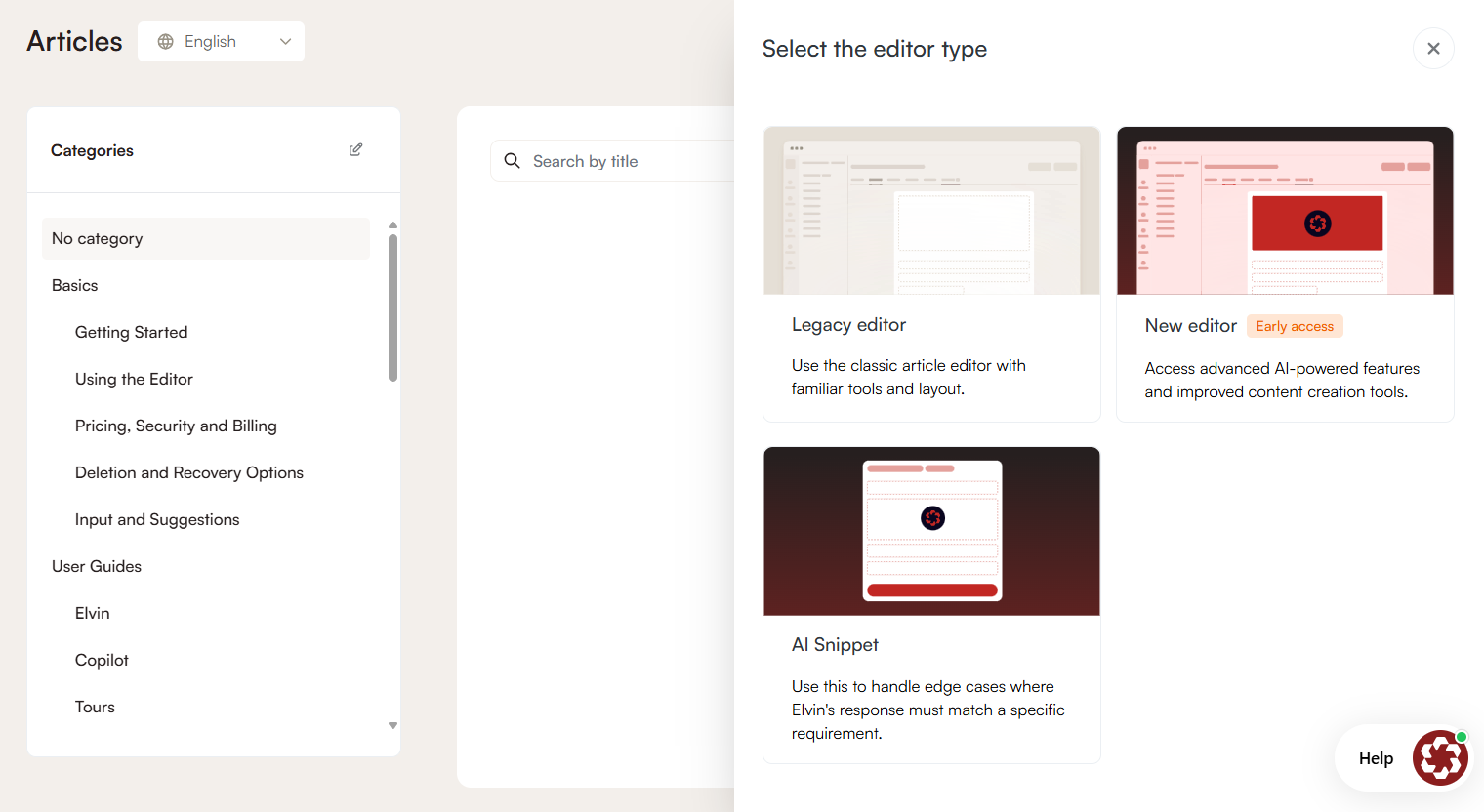
- Navigate to Knowledge base > Articles.
- Click Create new.
- Select AI snippet from the content type options.
- Fill in the following fields:
- Title: Edit the prefilled question text
- Answer: Write 1-2 paragraphs with the correct response
- Keywords: Add keywords for the AI, separated by commas
- Category: Select the KB article category
All AI snippets are stored in Knowledge base > Articles alongside regular KB articles. AI snippets have a distinct visual indicator to differentiate them from standard articles, and they can be edited, unpublished, deleted any time.
Best practices for KB Snippets
- Keep answers concise: Write 1-2 paragraphs maximum. Longer snippets are harder for the AI to process effectively.
- Use clear language: Write in simple, direct sentences. Avoid ambiguity.
- Include specific details: If certain numbers, steps, or terms must be mentioned, include them explicitly in the answer.
- Avoid duplication: Don't create multiple snippets for the same question. This creates conflicts and confusion for the AI.
- Document edge cases only: Reserve snippets for unusual situations or specific requirements that don't fit into standard documentation.
 Need more help? Book an Elvin Demo with our team of AI experts.