
Elvin Policies
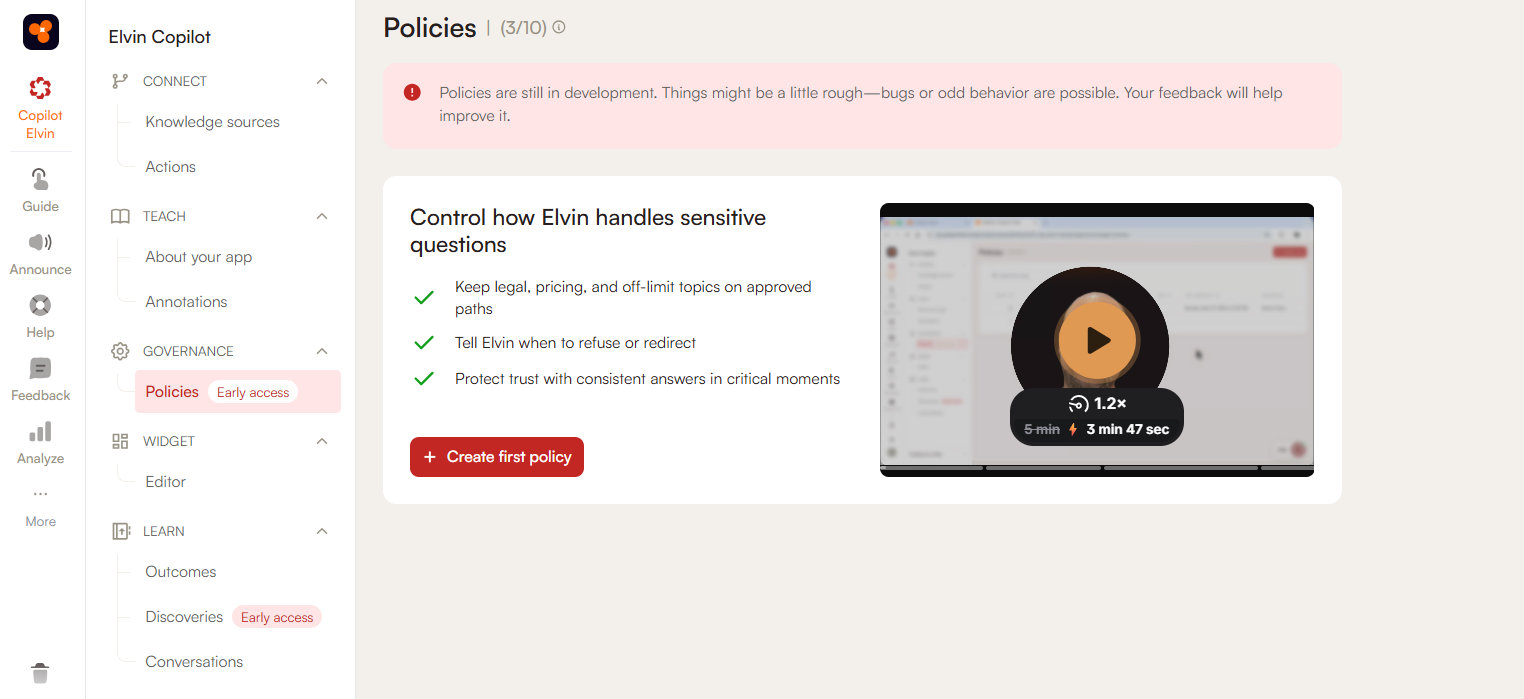
Policies define how Elvin behaves when a specific sensitive or high-risk topic comes up in a conversation. Instead of letting Elvin respond freely, you set a rule that tells it exactly what to do: refuse, redirect, or point the user to an approved source or contact. Policies act as a guardrail, and work best for topics like legal guidance, pricing, contracts, compliance, security, or other areas where the user should consult another source
What Policies are for
Use Policies when you need guaranteed, consistent behavior on topics where a wrong or improvised answer could cause problems. Policies are the right tool when:
- A topic should never be answered directly by Elvin, and the user must be redirected elsewhere
- Compliance, legal, or security requirements mean Elvin's response cannot vary based on how the question is phrased
- Preventing Elvin from making commitments about contracts or commercial terms
- Routing sensitive requests to support or another human-owned process
Good use cases include legal guidance, pricing and discounts, contract discussions, compliance questions, and security-related requests.
What Policies are not for
Policies only control behavior in specific triggered scenarios. They are not a general configuration tool.
Do not use Policies to adjust Elvin's tone or persona.
If you want Elvin to sound more formal, more friendly, or more concise, that is handled through tone and persona settings, not Policies. A policy will not make Elvin communicate differently across the board.
Do not use Policies to provide Elvin with more information or context.
If Elvin is giving incomplete or inaccurate answers on a topic, the solution is to enrich your knowledge base with better content. Policies do not teach Elvin anything, they only control what Elvin does when a specific situation is detected. Adding a policy to handle a knowledge gap will restrict Elvin without actually solving the underlying problem.
How to Create a Policy
Navigate to Copilot Elvin > Governance > Policies or click here.
Each policy contains a name, a trigger, a reaction, optional keywords, and a published state. Once live, it also shows statistics.
Focus each policy on one specific scenario. Policies that try to cover multiple loosely related topics are harder to manage and more likely to match incorrectly.
Name
Give the policy a clear, specific name that any team member can understand without context. This is for your team, your end users won't see it.
Examples: Legal topic restriction, Pricing question redirect, Contract discussion handoff

Trigger
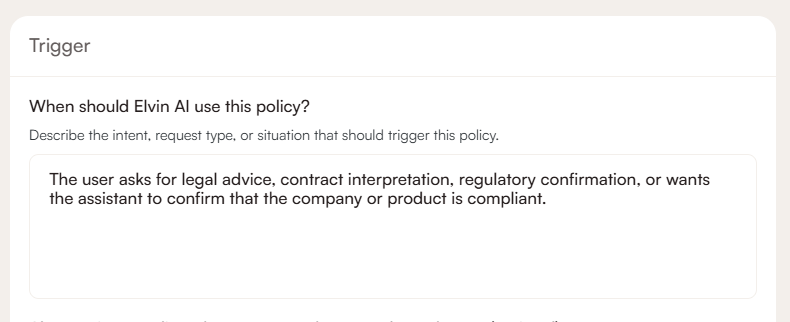
The trigger describes the situation that activates the policy. Write it in plain language based on what the user is trying to do, not the exact words they might type. Elvin uses the trigger to recognize intent, so it will match variations in phrasing as long as the underlying situation matches.
Examples:
- When the user asks for legal advice
- When the user asks about pricing or discounts
- When the user requests information that must be handled by support
Keep the trigger specific enough to avoid activating on unrelated conversations, but broad enough to catch the full range of ways users might raise the topic.
Trigger Keywords (Optional)
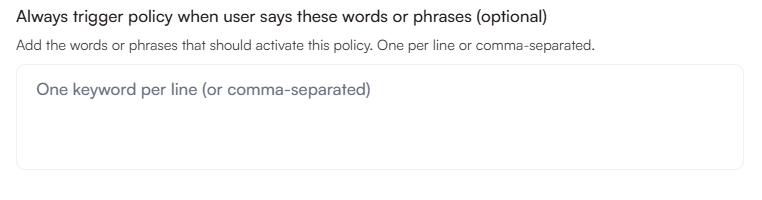
In many cases the trigger description alone is sufficient. Add keywords when the trigger is broad and needs reinforcing, when certain phrases should reliably activate the policy, or when you want to reduce the chance of accidental matches.
Keywords can be helpful when:
- The topic includes common phrases you want to catch reliably
- The trigger is broad and needs reinforcement
- You want to reduce accidental matches
Reaction
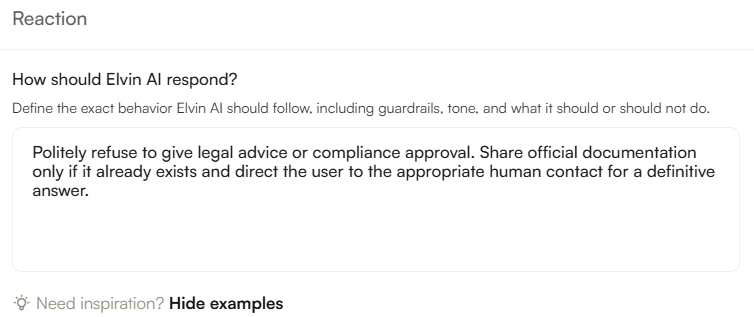
The reaction tells Elvin exactly what to do once the trigger matches. This is the most important part of the policy. A good reaction defines three things:
- What Elvin should not do: for example, do not answer the question directly
- What Elvin should do instead: for example, acknowledge the question and explain it cannot help with this topic
- Where to send the user next: for example, a specific support page, a contact email, or a human agent
The reaction should set a clear boundary and a clear next step. Defining behavior is what matters here, not adjusting tone.
Examples of reactions:
- Refuse to answer and direct the user to the legal team contact page
- Acknowledge the question and redirect to the official pricing page
- Let the user know this topic is handled by support and provide the contact link
Saving and publishing
You can save a policy at any point while you are still working on it. Saved policies have no effect on live conversations until they are published, so you can draft and refine without impacting end users.
When the policy is ready, publish it to make it active.
Important: If you edit a published policy, you must publish again for the changes to take effect. Saving alone does not update a live policy.
Statistics
Once a policy is live, the statistics section shows you how it is performing. You can see how many times the policy has been triggered and when it was last used.

Clicking the link in the statistics section takes you directly to the Conversations view, filtered to show the conversations where that policy was applied. Reading through these conversations helps you check whether the trigger is matching the right situations, whether the reaction is landing correctly, and whether any adjustments are needed.
Reviewing policy performance regularly is the best way to keep your policies accurate and effective over time.