
Discoveries
Discoveries help you run AI-assisted user research directly inside your product. Instead of building a static questionnaire, you describe what you want to learn and Elvin handles the rest: generating a focused Discovery, asking conversational follow-up questions that adapt to each user's answers, and turning the collected responses into AI-written insight reports.
Plan Availability
Legacy / Starter
Trial access only
If you do not have Elvin, Discoveries can be accessed by starting an Elvin trial.
Pro
One published at a time
Create unlimited Discoveries, but only one can be published at the same time. To publish a new one, unpublish the current one first.
Business
Unlimited published
No restriction on the number of Discoveries published simultaneously.
The billing unit for Discoveries is a Discovery pass, which equals one user conversation. A conversation doesn't need to be completed, even a partial interaction counts. Discovery passes count towards the monthly conversation quota included in your plan. To learn more about what's included, visit our official pricing page.
How Discoveries Differ from Surveys and Outcomes
Discoveries might look like an intersection of surveys and outcomes but work differently.
Surveys are best when you already know exactly what to ask. Even with branching, the questions don't change based on what a user actually said they don't go deeper or ask further topic-related questions.
Outcomes are great for after-the-fact insights . They give you data based on existing user conversations with Elvin. The catch is that this depends entirely on what your users brought up on their own.
Discoveries work differently. You tell Elvin upfront what you want to track and learn. From there, Elvin asks contextual follow-up questions based on each user's answers, digging deeper into the topic.
How to Create a Discovery
First, navigate to Copilot Elvin → Learn → Discoveries or click here.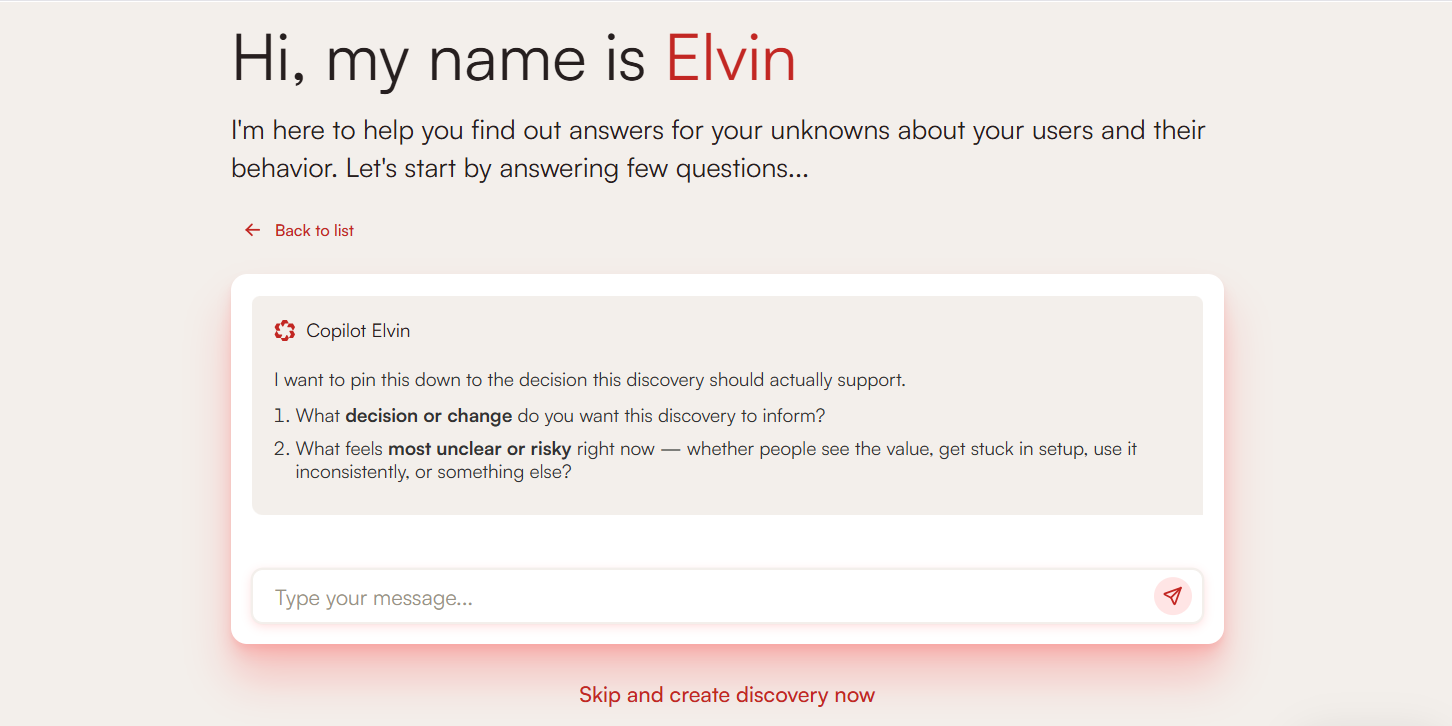
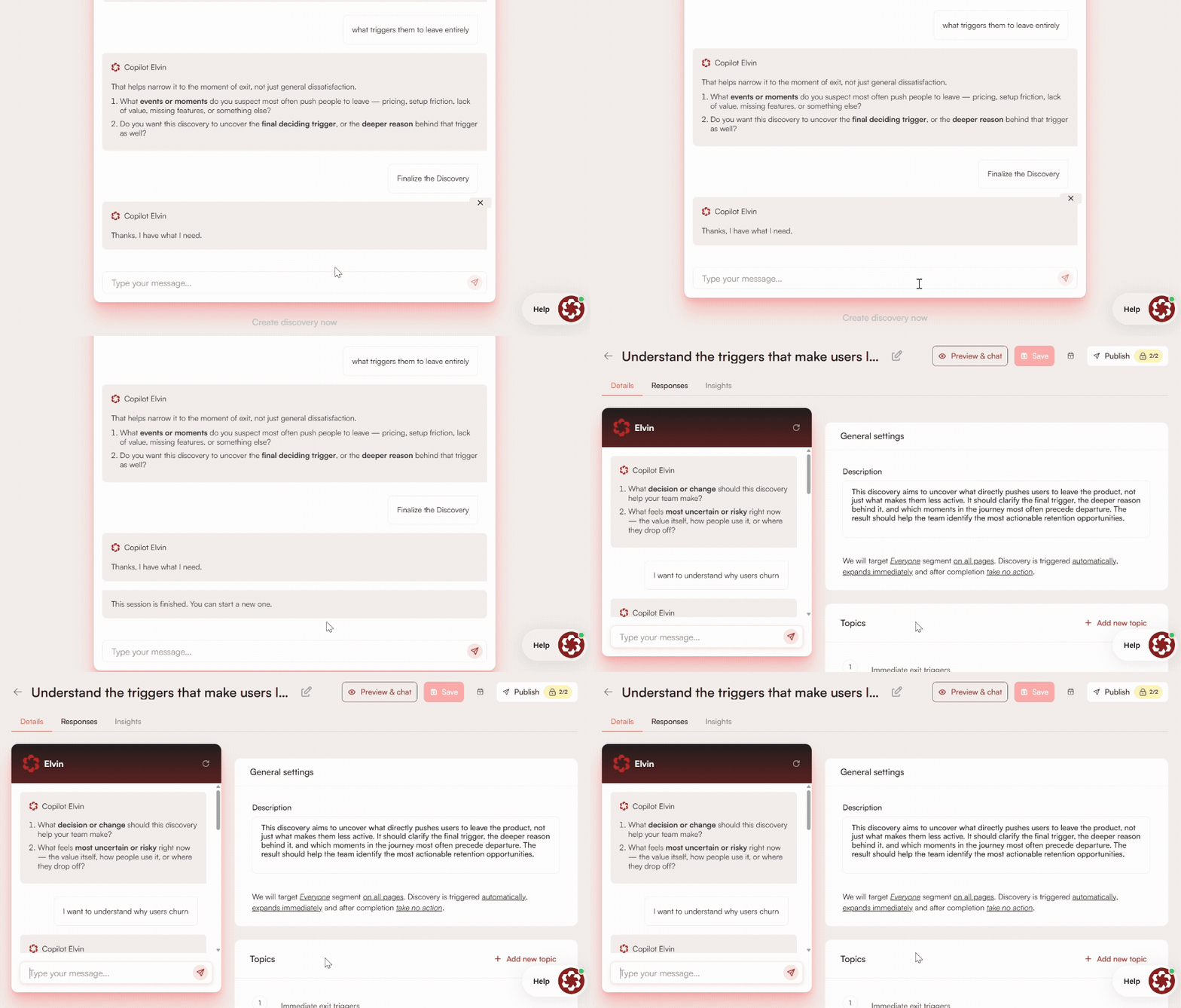
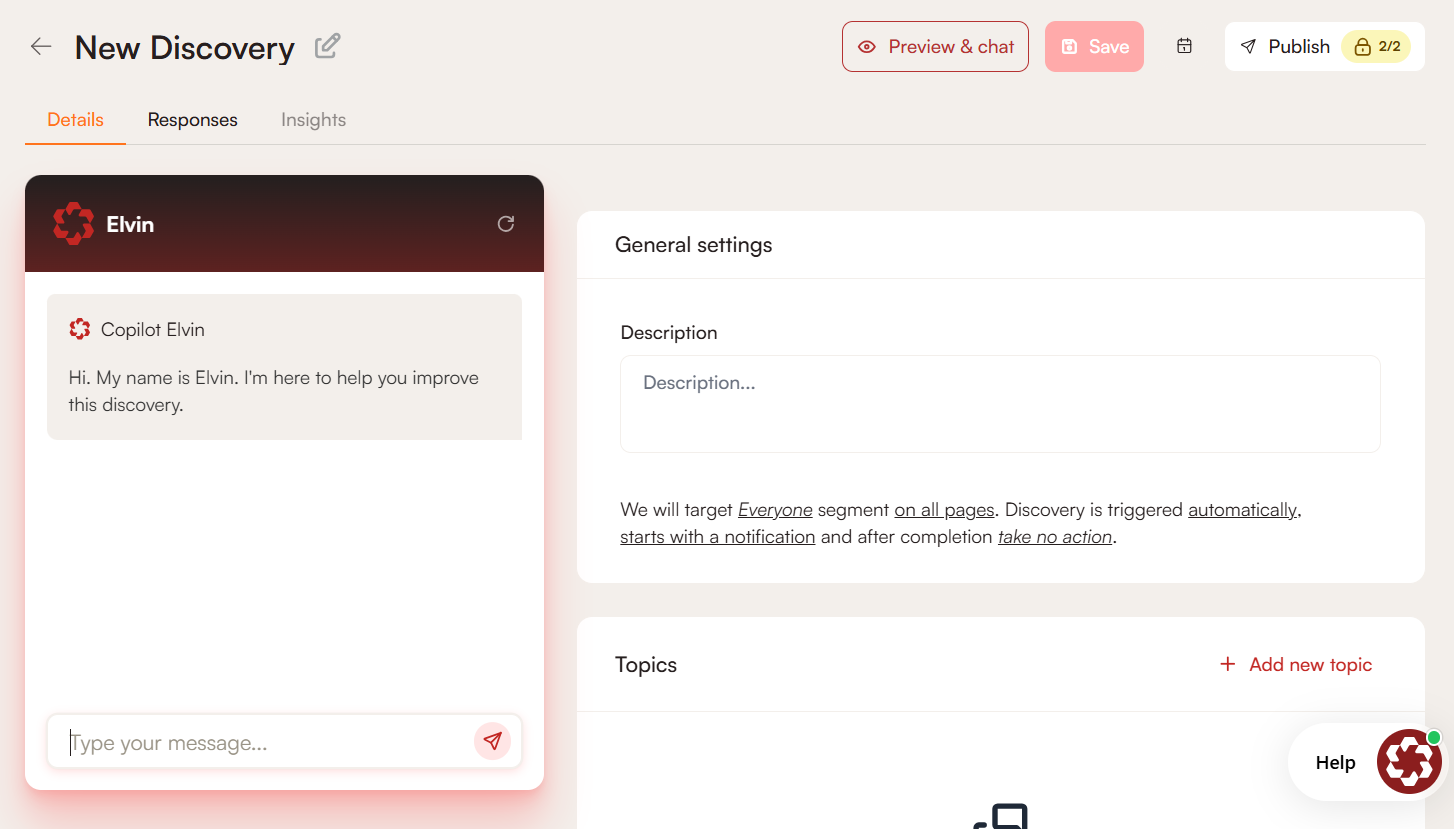
General Settings
Title
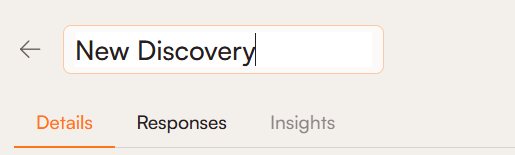
Click the title field and give your Discovery a name. This is visible to your team and should make clear at a glance what the Discovery is about.
Description
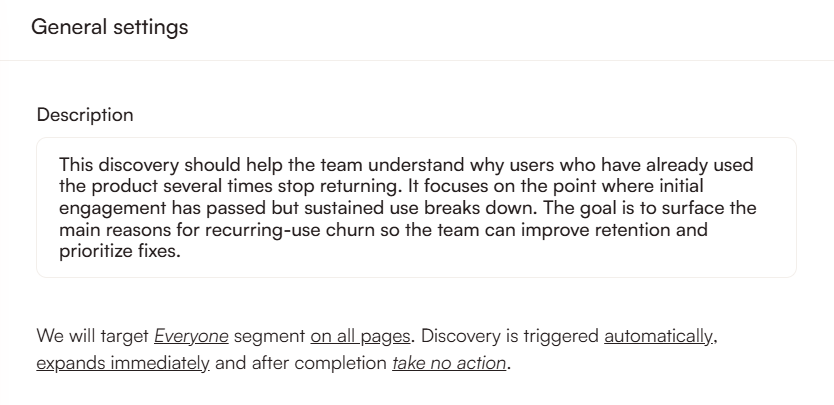
The description defines the aim and purpose of the Discovery, what you want to find out from your users. If you are writing this from scratch, be as detailed as possible: what you want to know, what the goal is, and what the findings should help with.
Configuration
Below the description, you can configure audience, placement, trigger, and first appearance in the form of a sentence:

Here's what each part of the sentence controls:
Audience
Target every user or limit the Discovery to a specific segment. To learn how to create a user segment, consult this article.
Placement
The Discovery appears on all pages by default. You can restrict or exclude a specific URL. If your URL contains dynamic parts, use the [dynamic] keyword for those sections.

Trigger
- Automatically fires when an eligible user enters the targeted page. This is the default and requires no additional implementation beyond your standard Product Fruits setup.
- Manually via API fires on a specific in-app event or custom workflow. Requires developer involvement.
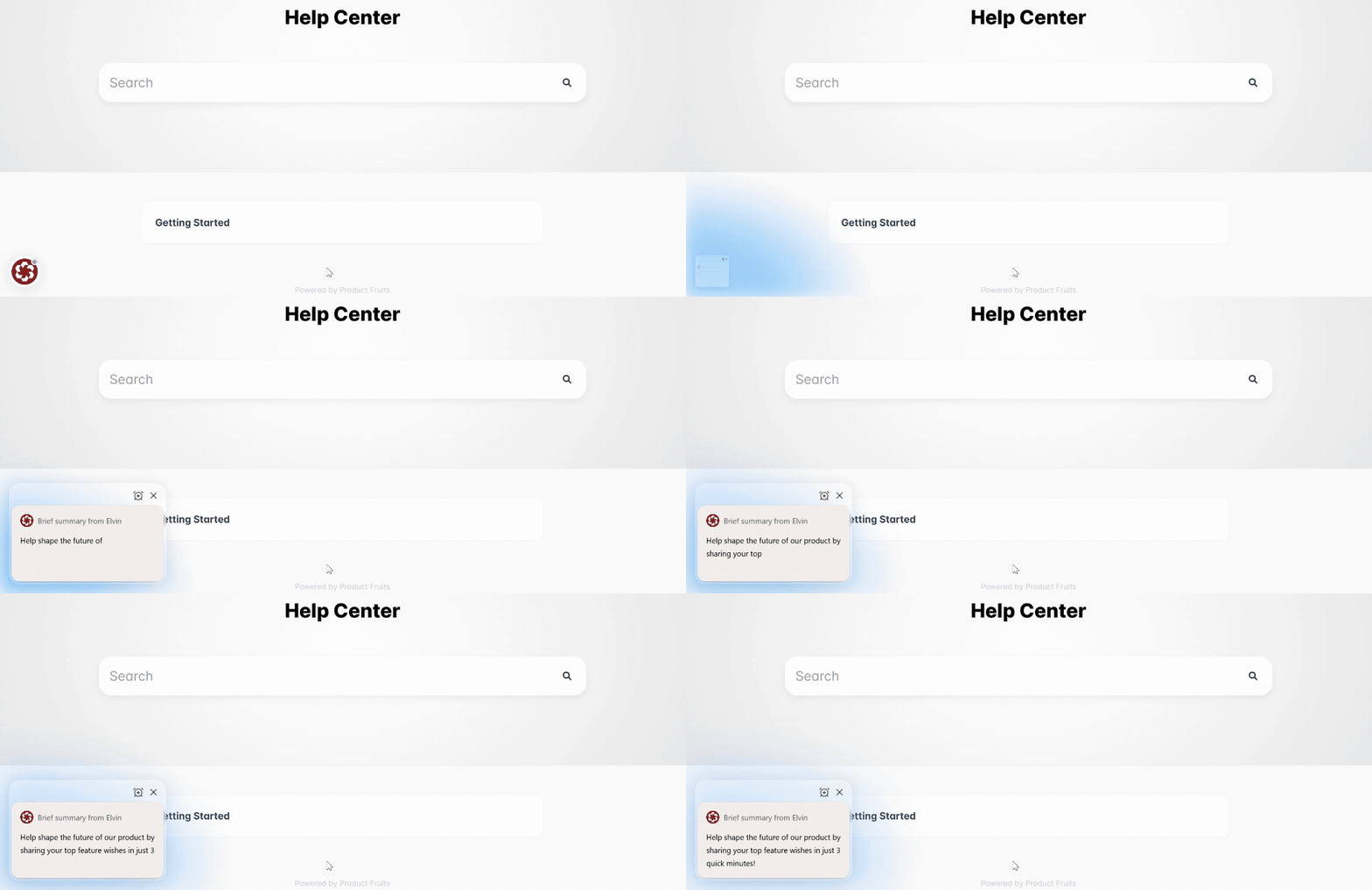
First appearance
Starts with a notification means users see a small prompt inside Elvin inviting them to take part.
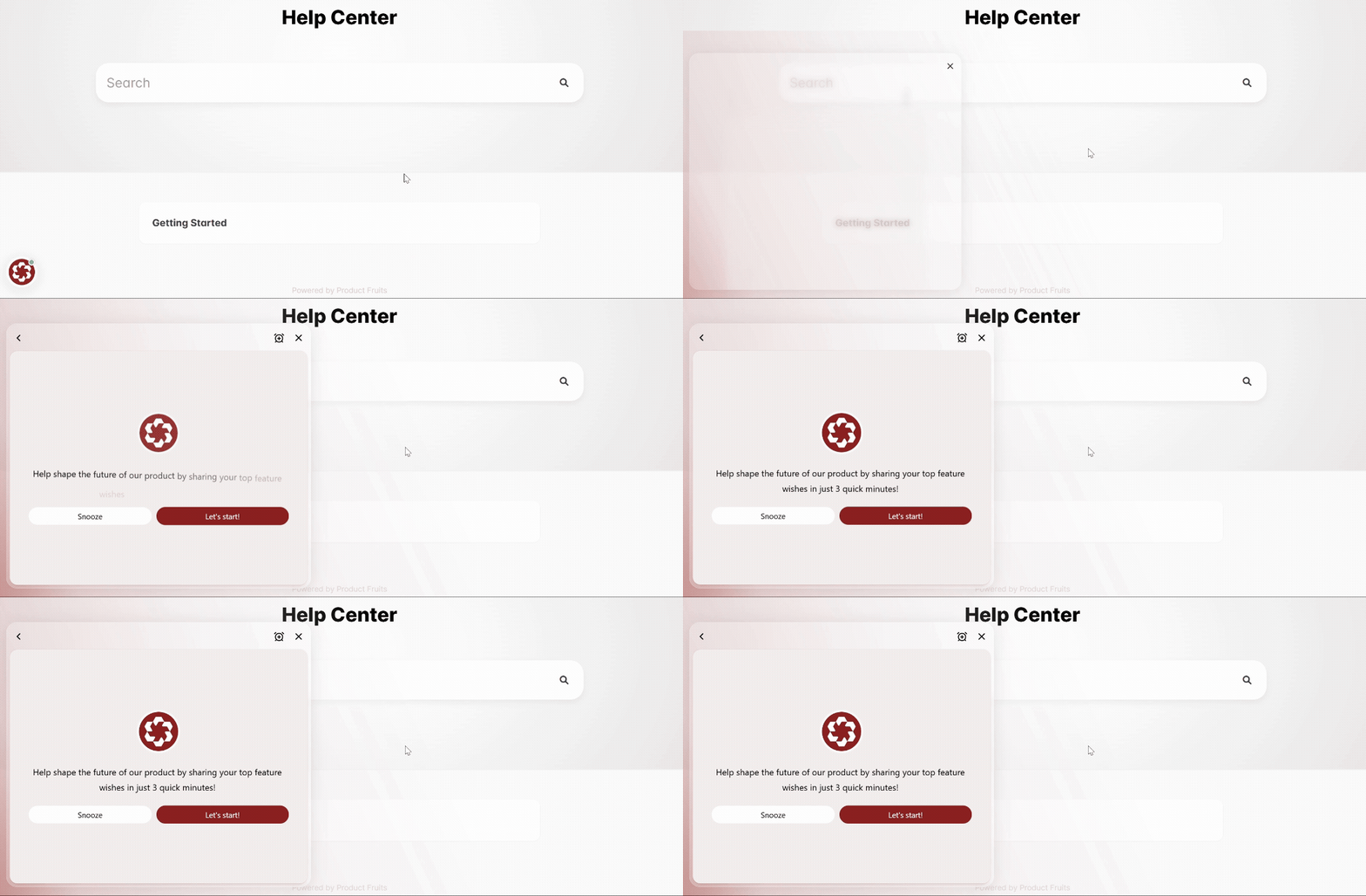
Opens expanded means the Discovery opens immediately in a more prominent way.
Topics
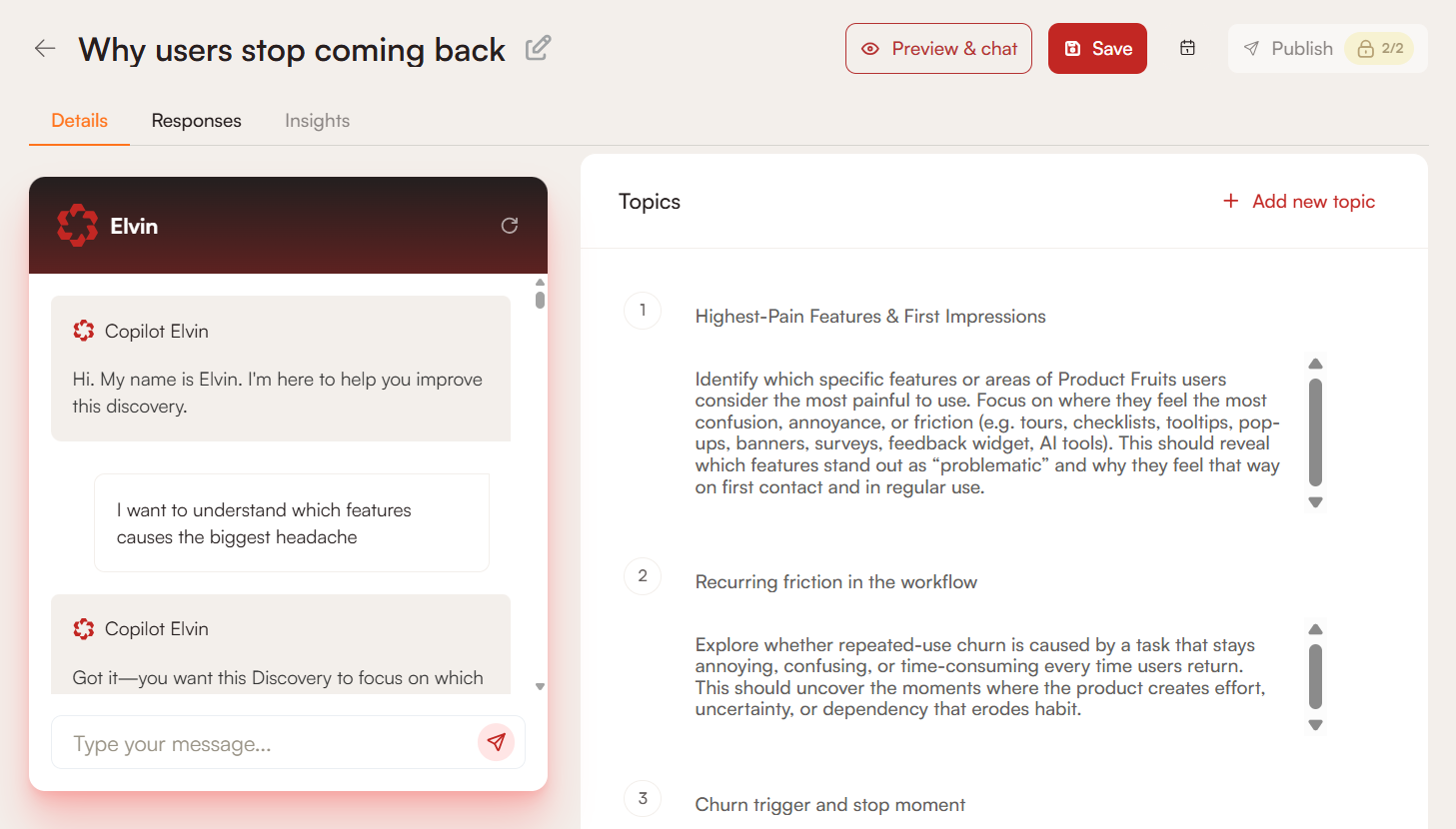
Topics define the main research angles Elvin should cover during conversations with users. Each topic has a title and a short description that guides how Elvin approaches that angle with each user.
You can rename a topic, edit its description, remove it, or add a new one manually.
In most cases, keeping the Discovery focused on around three topics works best. Too many topics can cause conversations to feel unfocused, and the resulting insights harder to act on.
Elvin Chat
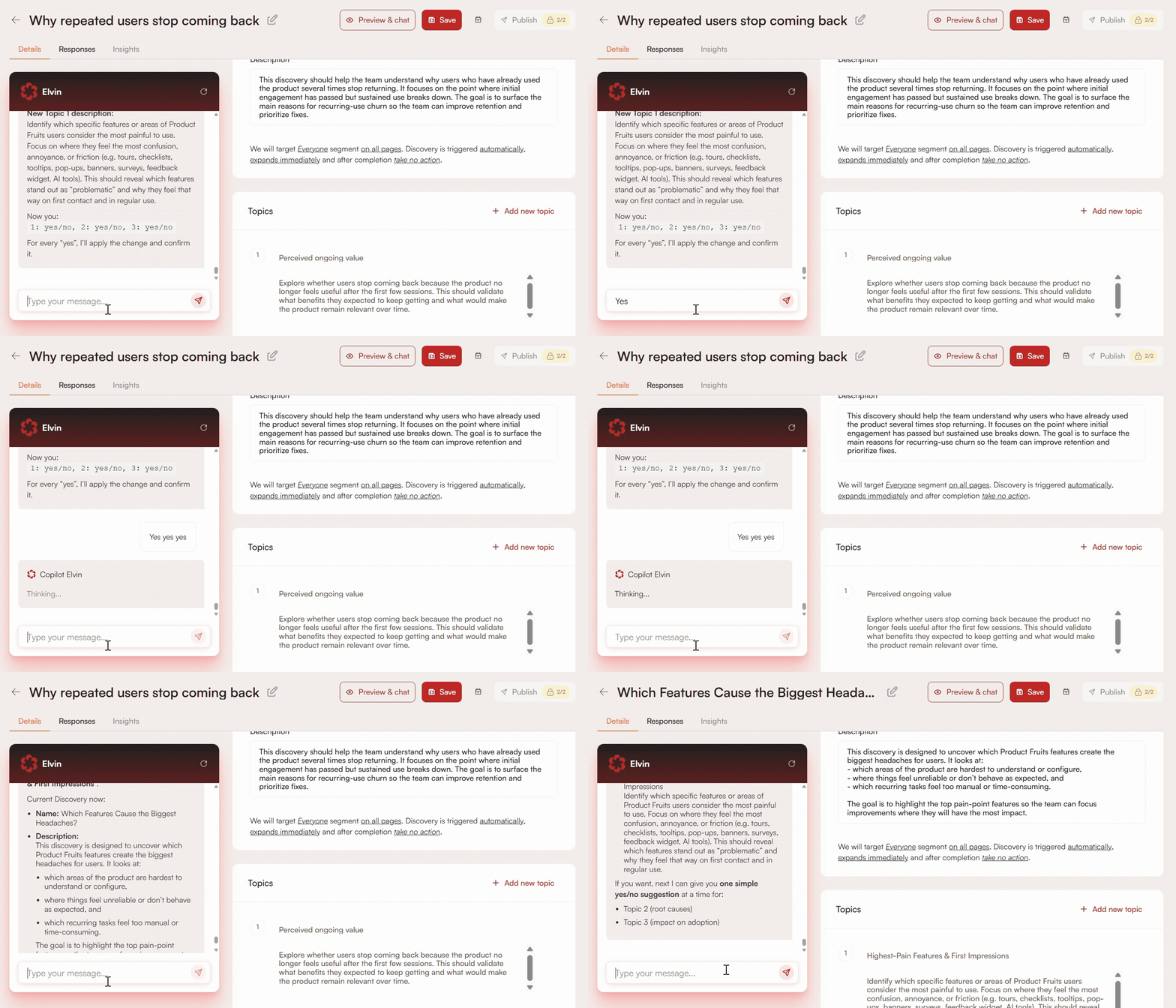
The Elvin chat panel lets you converse with Elvin directly while setting up your Discovery. As you provide more context, Elvin updates the description or suggests changes to your topics, including adding new ones. Before applying any changes, Elvin always validates with you first.
Admin Tools
Under Admin tools you can find the public ID of your Discovery, which can be used for identification or integration purposes.
You can also restart the Discovery for a selected user or for all users at once.

Schedule
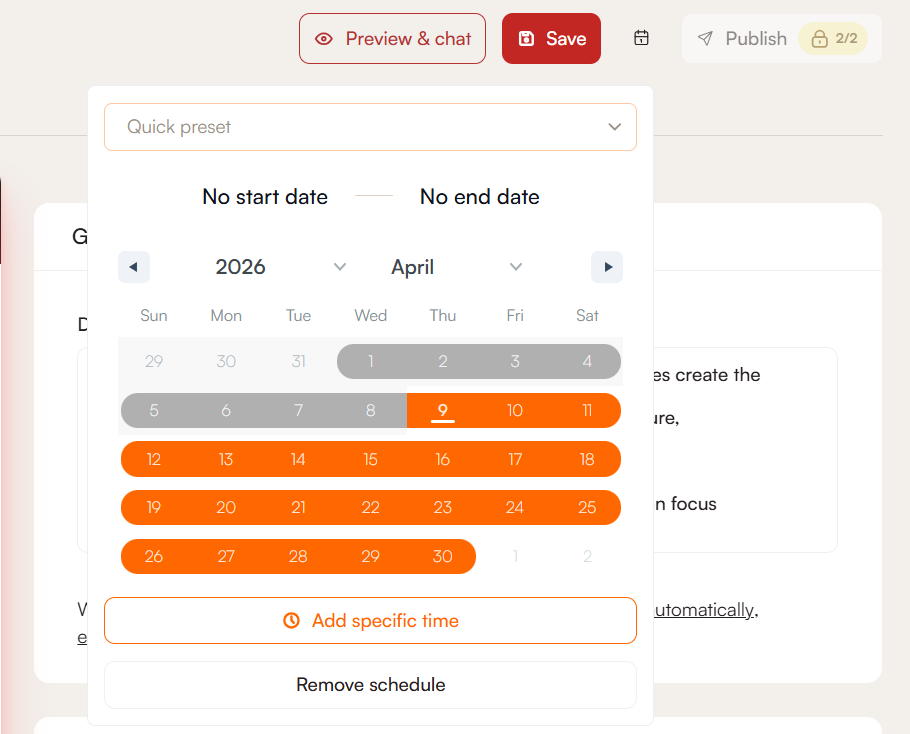
Set a specific time period during which the Discovery appears to users. You can select a fixed time zone or use each user's local time zone. The local time zone option is useful for international audiences, as it ensures the Discovery runs for the same duration for every user regardless of their location. If no time zone is selected, UTC applies by default.
Once the scheduled period ends, the Discovery stops appearing automatically. No action is needed on your end. Note that the Discovery will still show as published, but it won't be visible to your users.
Preview and Chat
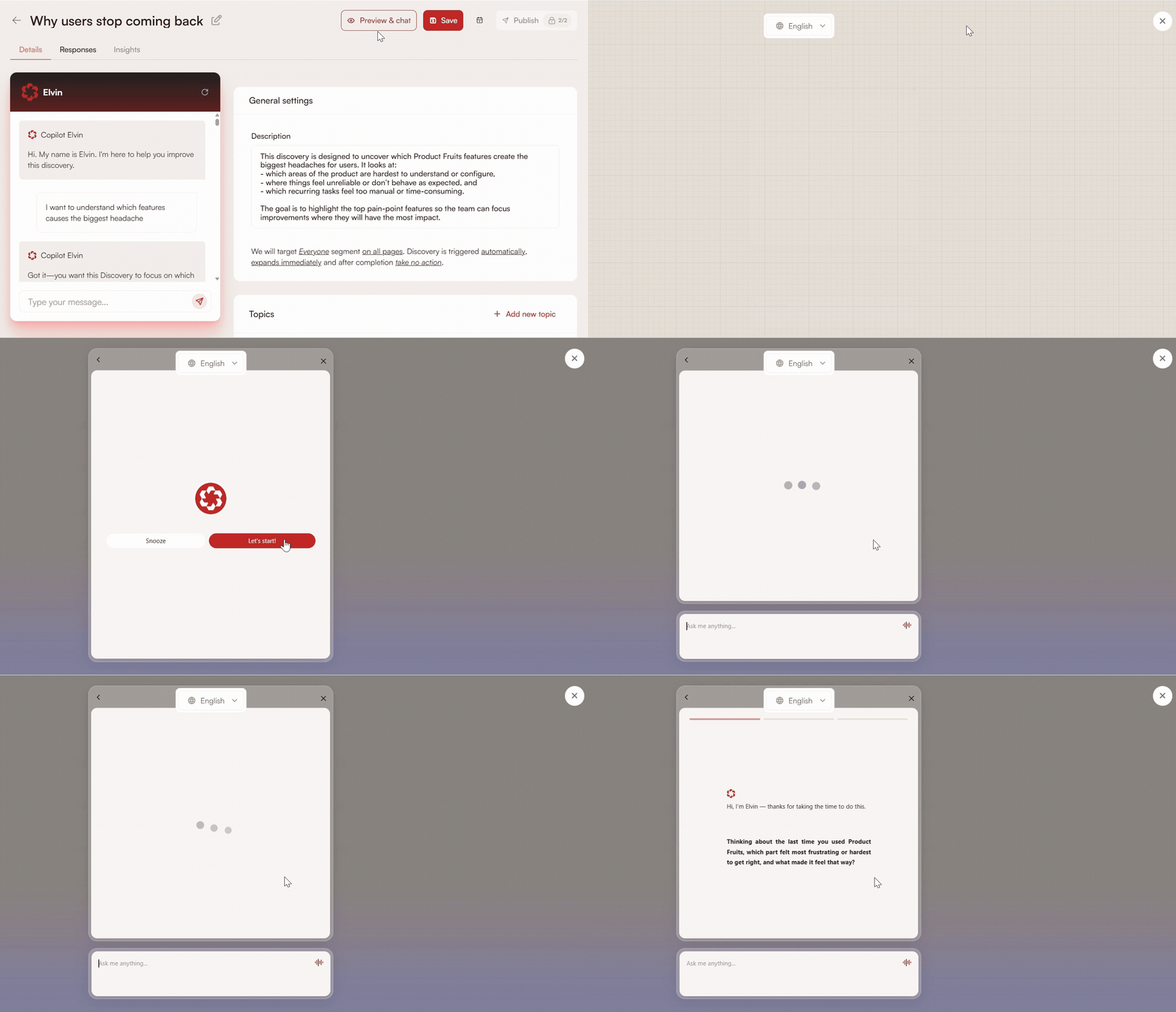
Discoveries are conversational, which means the experience is harder to judge just by looking at the setup. The preview shows exactly how the Discovery will appear to your end users: the questions Elvin asks, the tone, and the flow. Based on your experience, you can adjust the topics before releasing it to your users.
What End Users Experience
When an eligible user matches the audience and placement conditions, the Discovery appears inside your product through Elvin. Depending on your first appearance setting, users either see a small notification prompt first or the Discovery opens straight away.
During the conversation:
- Elvin asks one question at a time
- Follow-up questions are based on the user's previous answer
- The conversation stays focused on the configured topics
- Users can answer, snooze, or close the Discovery at any point
Snoozing postpones the Discovery so the user can come back to it later. It reappears once the following day, but if the user snoozes it again, it will not reappear. Closing dismisses the current window without completing it.
Once the conversation is complete, Elvin thanks the user and the experience closes.
Responses - Analytics
The Responses tab is where you can review how users interacted with your Discovery, track completion rates, and dig into individual conversations.
Metrics
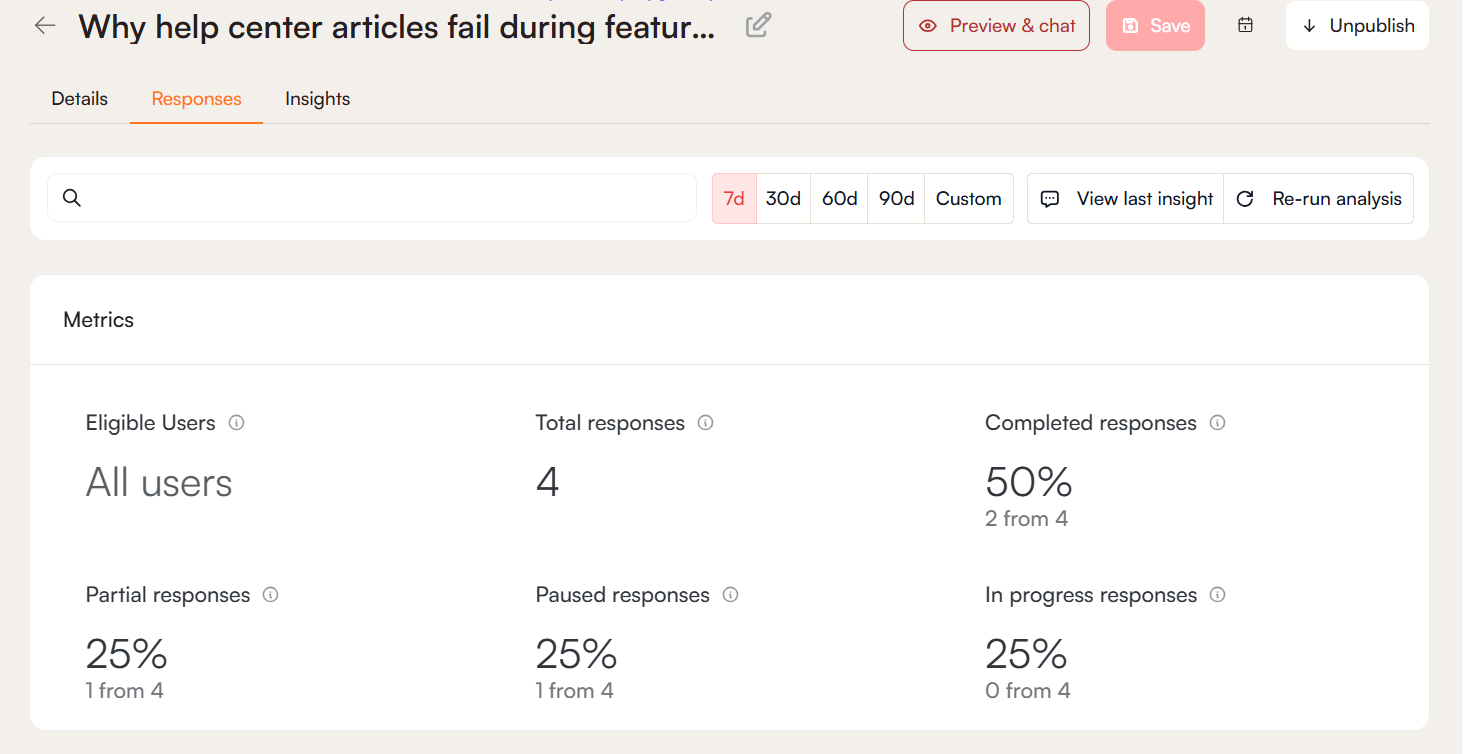
- Eligible users: users who matched the selected audience and targeting conditions
- Total responses: all recorded Discovery conversations in the selected time range
- Completed responses: users who finished the Discovery
- Partial responses: users who answered at least one question but did not finish
- Paused responses: conversations that are currently paused or snoozed
- In-progress responses: conversations that have started but are not yet complete
Response Table
Below the metrics, you find a table with individual user responses. Each row represents one discovery pass and includes the following details:
- Status: Completed, Partial, or Paused
- Response theme: the main theme detected in the user's conversation
- Username: the user the response belongs to
- Last updated: when the Discovery was last interacted with by that user
- Topics answered: how many topics were covered in that conversation
Note: Some partial responses may show 0 out of N topics answered even if the user did respond. This is because the system evaluates whether a topic was actually answered. A response alone does not automatically count as a fulfilled topic.
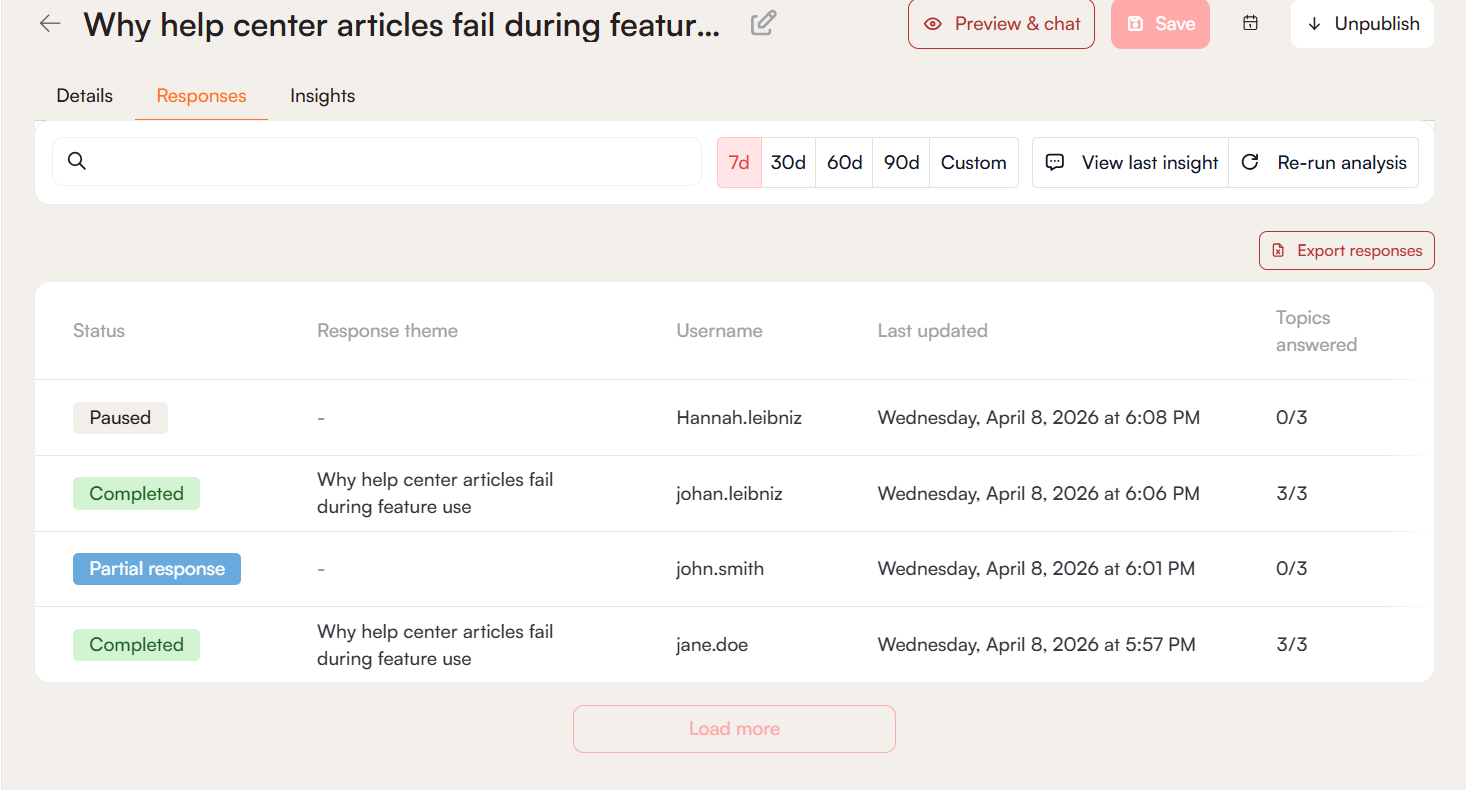
Search
Use the search bar to look up specific words from conversations and see how often and in what context they came up. Note that searching by username is not supported, only conversation content such as themes.
Set a Date Range
You can filter responses over a specific period by selecting a date range. Use the preset options for quick selection — 7, 30, 60, or 90 days — or set a custom range with exact start and end dates.

Export
If you need to analyze the data outside Product Fruits, you can export responses as a CSV file by clicking on the Export responses button above the covnersation table.
Insights
Discoveries can turn collected responses into an AI-generated insight report. You can generate one, re-run the analysis, or view the last generated report from the Discovery detail page or from the Responses tab.
To generate an insight, the Discovery must have at least 4 responses. This is the minimum threshold; in practice, the report becomes more useful as more responses come in.
Note that partial and in-progress responses also count towards insight generation.
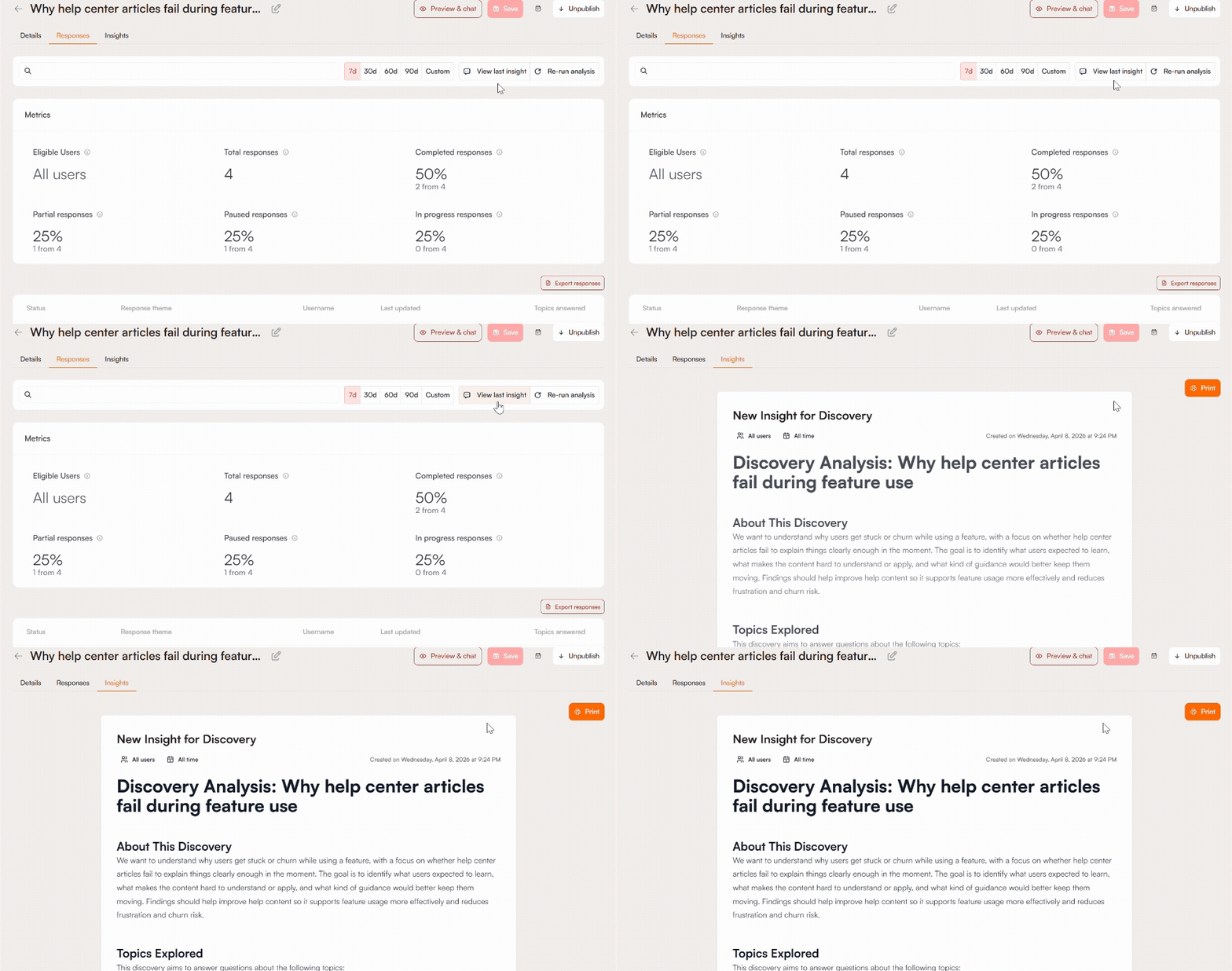
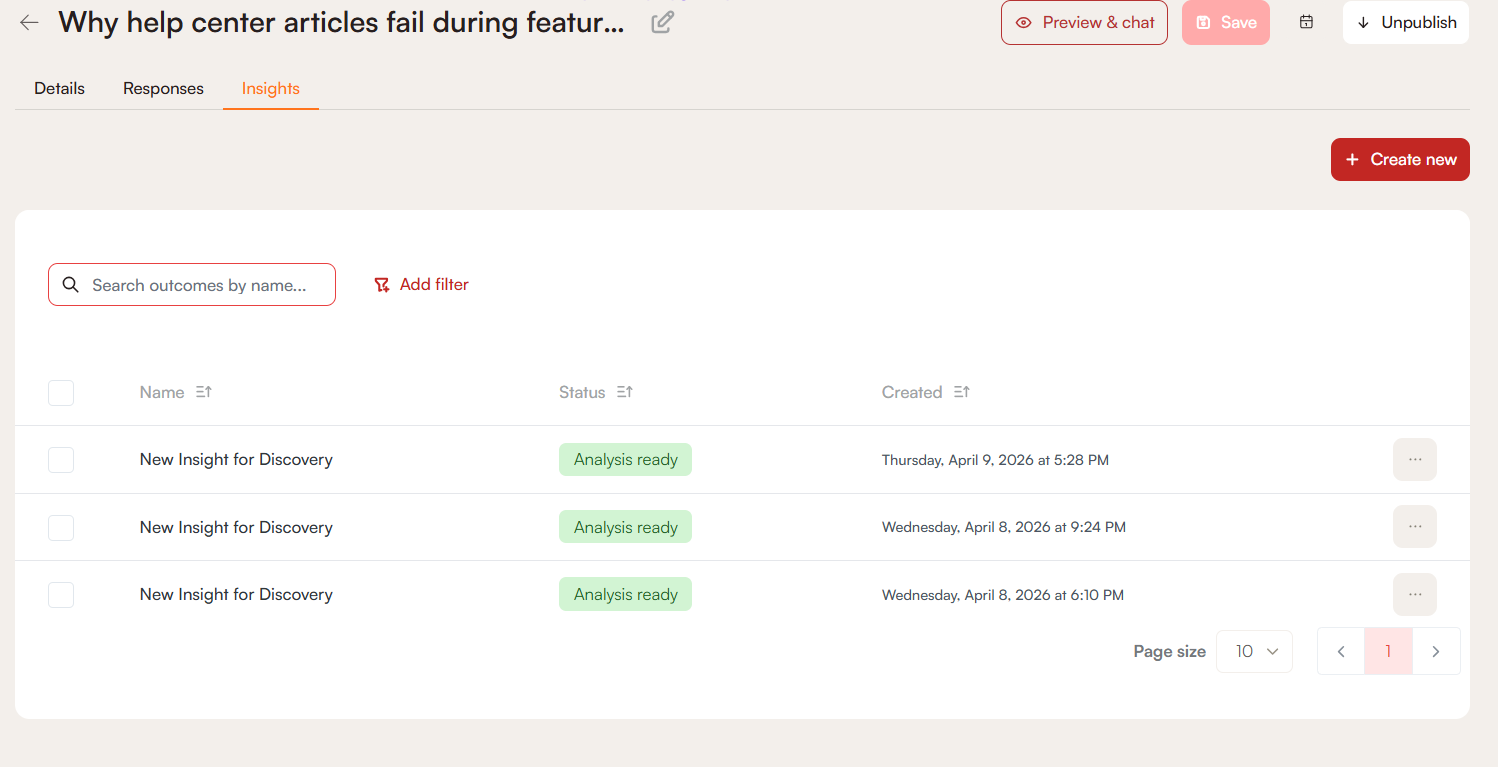
You can generate multiple insights for the same Discovery over time by clicking Re-run analysis. Each time you do, Product Fruits creates a separate report accessible under the Insights tab. This lets you keep earlier reports while generating a newer version based on a larger response set, useful when new responses keep coming in and you want a fresher synthesis.
 Need more help? Book an Elvin Demo with our team of AI experts.