
Microsoft Teams Flow Step
The Microsoft Teams Flow step posts a message to a Teams channel while a Flow runs. Use it to notify your team when something happens in your product, such as when a trial account reaches an activation milestone, a user submits negative feedback, or an onboarding checklist stalls.

The Microsoft Teams Flow step is available only on the Business plan. This feature is currently in Early Access. Its functionality may change, and you may encounter occasional issues while using it.
Set Up the Connection
Only Product Fruits workspace Owners can create or edit connections. Anyone who can edit a Flow can select an existing connection by name, but they cannot see its webhook URL.
A Microsoft Teams connection represents one channel. The Power Automate Workflow webhook determines where messages are posted, so there is no separate channel selector in the Flow step. To send messages to multiple channels, create a separate connection for each channel.
Create a Workflow Webhook in Microsoft Teams
- In Microsoft Teams, open the channel where you want Product Fruits messages to appear.
- Open the channel’s menu and select Workflows.
- Select a webhook template that posts to a channel when a webhook request is received, such as Send webhook alerts to a channel.
- Follow the Microsoft Teams instructions to authenticate the Workflow and confirm the destination team and channel.
- Save the Workflow and copy the webhook URL it generates.
See Microsoft’s guide to sending Teams messages using incoming webhook Workflows for detailed setup instructions.
Microsoft associates a Workflow with the Microsoft account that created it. Use an account that will remain active in your organization so the Workflow does not stop unexpectedly.
Create the Microsoft Teams Connection in Product Fruits
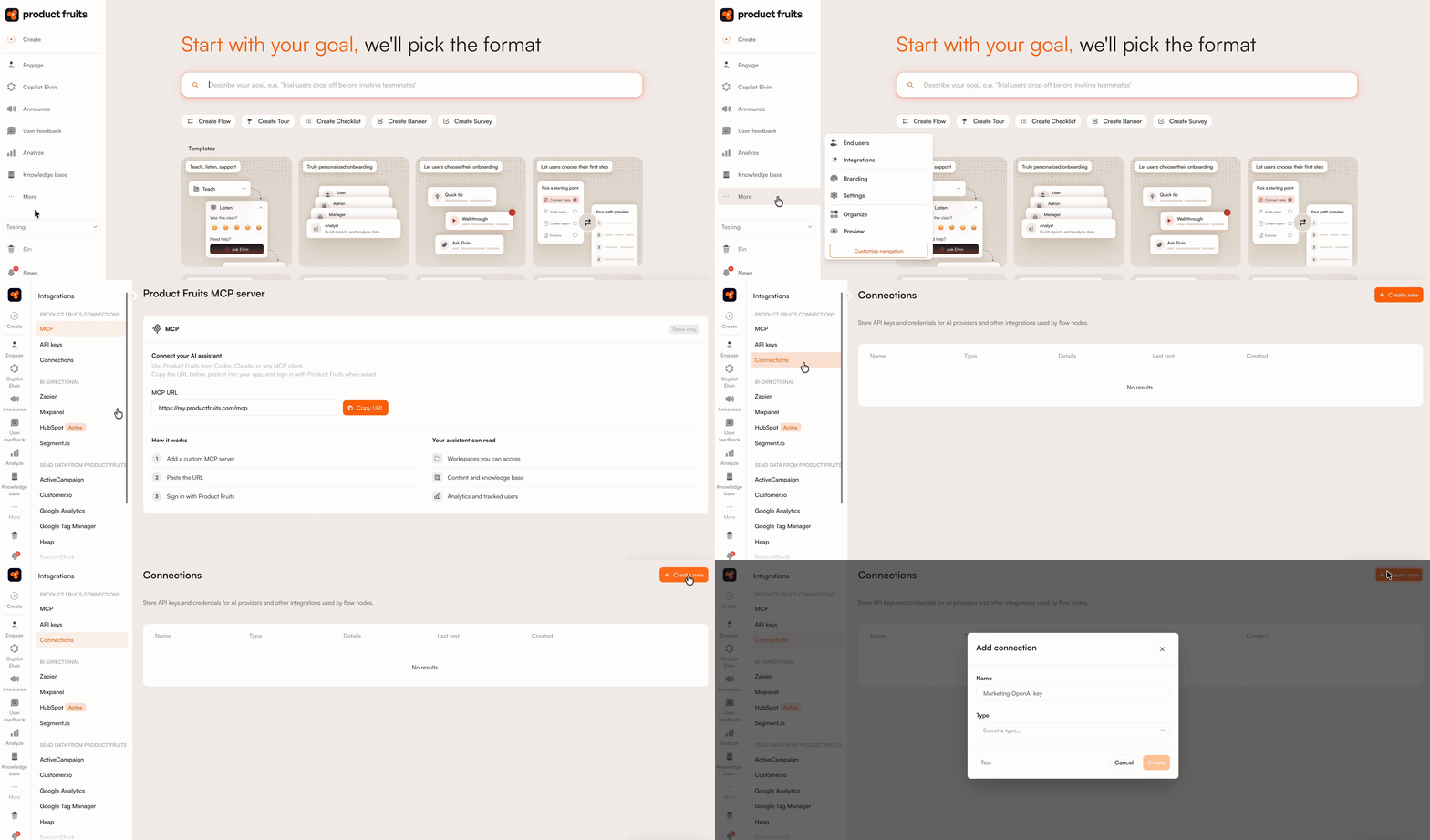
- In Product Fruits, go to More → Integrations → Connections and click Create new.
- Enter a descriptive connection name and select Microsoft Teams as the connection type.
- Paste the URL copied from Microsoft Teams into Webhook URL.
- Optionally, enter the destination channel’s name in Channel name. This name helps you distinguish connections in Product Fruits. It does not change where the Workflow posts messages.
- Click Test to verify the connection. The test sends a real Product Fruits connection test card to the Teams channel.
- If the test succeeds, click Create.
Configure the Microsoft Teams Flow Step
- In the Flow editor, add the Microsoft Teams step from the Advanced (Pro) section and click Edit.
- Select the connection the step should use. The selected connection determines which Teams channel receives the message.
- Complete the message fields:
- Title (optional): Enter a short heading that appears in bold above the message. The title can contain up to 200 characters.
- Message (required): Enter the content that should appear in the Teams channel. The message can contain up to 4,000 characters and must contain a value after its placeholders are resolved.
The Title and Message fields remain unavailable until you select a Teams connection.
Use Placeholders
The Title and Message fields support placeholders. Use them to include user properties, Flow variables, or output from an earlier step.
For example:
New feedback from {{user.email}}
Type {{ in either field to select an available placeholder. See Using placeholders for the supported values and instructions on adding fallback text when a value is unavailable.
Character limits are also applied after placeholders are resolved. Any content beyond the field’s limit is removed, so allow additional space when inserting values that may be long.
Handle Failed Message Delivery
Enable Failure branch and connect it to another step if you want the Flow to follow an alternative path when the Teams message cannot be delivered.
If message delivery fails, the Flow follows the connected failure branch instead of stopping.
Message Limits
Microsoft Teams messages are limited per Product Fruits project, across all Flows and Teams connections:
- 10 messages per minute
- 200 messages per day
These limits help prevent a broadly targeted Flow from flooding a Teams channel. If you expect a higher volume, narrow the Flow’s targeting or place the Teams step behind a condition.
Limitations
- Each connection posts to one Teams channel. To post to multiple channels, create a separate connection for each channel.
- Only Microsoft-hosted Power Automate Workflow webhook URLs are supported. Legacy Office 365 Incoming Webhook connector URLs are not accepted and must be replaced with a Workflow webhook.
- The Flow step does not include a channel selector. The connection’s webhook URL determines the destination.
- Message delivery is subject to the per-project limits described above.
 Need more help? Book a demo with our team of experts.