
Slack Integration
The Slack integration is a one-way connection. It lets Product Fruits send notifications into a Slack channel you choose, so your team can see activity without leaving Slack. It does not send anything from Slack back into Product Fruits.
The Slack Integration is available on all plans.
Which Features Use Slack
- Flow Slack step: lets a Flow send a notification to Slack when it reaches that step. This step is available on Business plans; the integration itself is not plan-gated, but using it from a flow is. See the Slack Flow Step article for more information.
- Survey answer notifications: get notified in Slack when a user submits a survey response.
- Feedback notifications: get notified in Slack when feedback comes in through the feedback widget or the Elvin Widget.
Each of these is configured separately. Connecting Slack once makes all three available; it doesn't turn any of them on by itself.
Connecting Slack
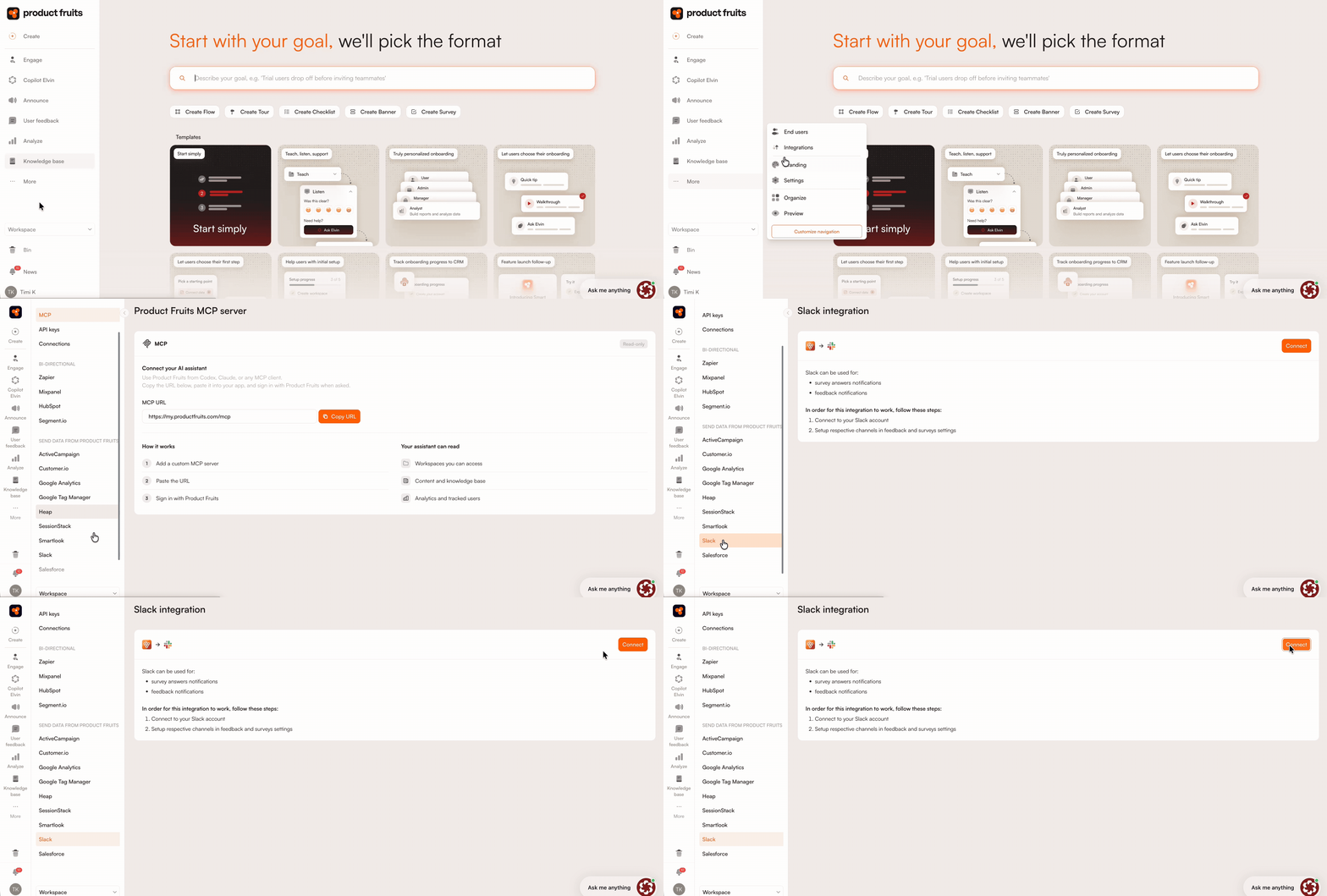
- Navigate to More > Integrations > Slack.
- Click Connect.
- You'll be redirected to Slack to select your workspace.
- After reviewing the permissions, click Connect.
That's the whole setup. Product Fruits doesn't need any further configuration on the Slack side.
Configuring the Channel for Notifications
Connecting Slack doesn't send anything on its own. Each feature that can notify Slack has its own channel setting, configured where that feature is built. This means different notification types can go to different channels, for example survey answers to one channel and feedback to another.
Limits
Message limits and any other constraints are specific to each feature.
Related articles
- Slack Flow Step
- Send feedback from the Elvin Widget to Slack
- Connect the Feedback Widget to Slack
- Send Survey answers to Slack