
Logic & Control Flow Steps
These steps control the shape of the flow: branching based on who the user is, pausing before the next step, recording events, or updating properties as the user moves through.
Condition
Evaluates a condition and splits the flow into two paths: one that runs if the condition is true, and one that runs if it's false. Use this when different users should experience different things based on who they are or what they've done.
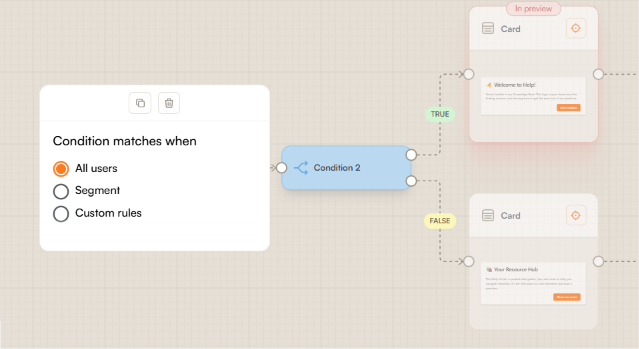
First, select the scope of the condition:
All users: no filtering applied. Both branches are available but the true branch will always be followed.
Segment: evaluates whether the user belongs to a predefined segment. Learn how to create a segment.
Custom rules: build a condition from individual properties and events. Rules can be combined with AND/OR logic.
Once a scope is selected, two branches appear on the canvas. Configure each one to continue the flow in the appropriate direction.
Custom Rule Properties
User properties
All text-based user properties, Username, Email, Role, First Name, and Last Name, share the same set of operators:
- Equals / Doesn't equal: exact match or exclusion.
- Is empty / Is not empty: checks whether the field has any value at all.
- Contains / Doesn't contain: checks whether the field includes a specific string.
- Matches regex / Doesn't match regex: evaluates the value against a regular expression. Use this when your logic is too specific for a contains check, for example, matching users from multiple email domains at once, or enforcing a specific format.
The Sign Up At property works differently since it holds a date value. It accepts a date in YYYY-MM-DD format and supports these operators:
- Equals / Doesn't equal: signed up on or not on a specific date.
- Is empty / Is not empty: checks whether a sign-up date has been recorded.
- Is larger than: signed up after the specified date.
- Is less than: signed up before the specified date.
- Is larger than or equals: signed up on or after the specified date.
- Is less than or equals: signed up on or before the specified date.
Event Property
Evaluates whether a custom event has or hasn't happened for the user. Select from your existing custom events.
By clicking Refine, you can further narrow the condition:
- Define how many times the event has occurred using the count field
- From the dropdown, specify the time scope: Ever, or within the last X days / hours / minutes
- Add further attribute conditions to filter by specific properties of the event itself
Flow Property
Evaluates the state of another flow for this user. The available conditions are: finished, skipped/dismissed, or either.
Enrollment Property
Evaluates a variable set during the current enrollment. An enrollment is the equivalent of a session, it begins when the user enters the flow and ends when they complete it, dismiss it, or are disqualified by a condition. Enrollment properties are scoped to that session and reset when a new enrollment begins.
For text-based enrollment variables, the available operators are:
- Equals / Doesn't equal: exact match or exclusion.
- Is empty / Is not empty: checks whether the variable has any value at all.
- Contains / Doesn't contain: checks whether the value includes a specific string.
- Matches regex / Doesn't match regex: evaluates the value against a regular expression. Use this when your logic is too specific for a contains check.
For date-based enrollment variables, the operators are the same as Sign Up At. The value must be in YYYY-MM-DD format:
- Equals / Doesn't equal: matches or excludes an exact date.
- Is empty / Is not empty: checks whether a date value has been recorded.
- Is larger than: after the specified date.
- Is less than: before the specified date.
- Is larger than or equals: on or after the specified date.
- Is less than or equals: on or before the specified date.
Yep, better as a structured section:
Multi-Condition
Use Multi-condition when your flow needs more than a simple yes/no split. It lets you create several possible paths and send each user down the first branch that matches them.
How It Works
You can add up to 8 If branches.
Branches are evaluated from top to bottom. The first matching branch is the one the user follows.
You can also name each branch, which is helpful when the flow has several different paths, such as:
- New users
- Trial users
- Admins
- Users who completed a key action
- Users who do not match any rule above
Take this branch when...
For each branch, choose when it should apply:
All users
No filtering is applied. If the flow reaches this branch, it will match all users.
Segment
Checks whether the user belongs to a selected segment.
Custom rules
Lets you build the branch logic from user properties, events, flow properties, or enrollment properties. Rules can be combined with AND/OR logic.
Else branch
The Else branch is always available.
Use it for users who do not match any of the If branches above. This gives the flow a fallback path, so users always have somewhere to continue when no condition applies.
Continuing the flow
Add the next step to the end of each branch. When the flow runs, the user continues only through the branch that matched first.
Delay
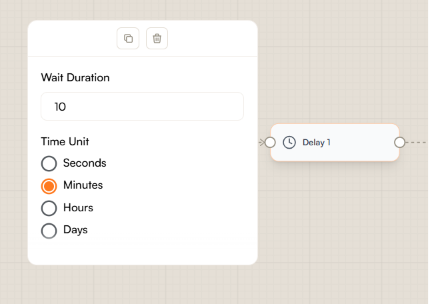
Pauses the flow for a set amount of time before the next step appears. Set the duration in seconds, minutes, hours, or days. The user won't see anything during this time, the next step simply won't appear until the wait is over.
Use this when you need to give a page element time to load, space out steps intentionally, or wait for a background process to complete before continuing.
Track Event
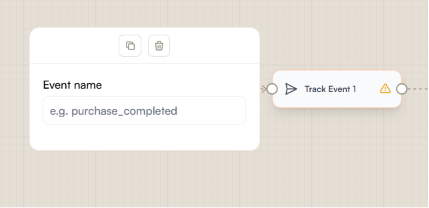
Fires a custom event when the flow reaches this step. Select from your existing custom events, this step doesn't create new ones.
Use this to mark meaningful points in a flow for analytics purposes, or to trigger other logic in your product that listens for that event.
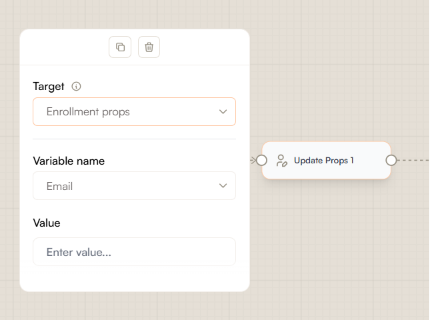
Update Props
Updates a property value when the flow reaches this step.
User properties: updates a property on the user's profile directly. Select the property to update, Email, Role, First Name, or Last Name, and provide the new value. Changes made here are persistent and will be reflected anywhere that user property is used.
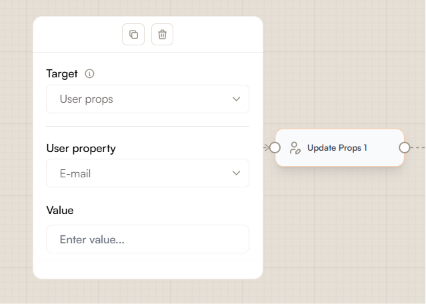
Enrollment properties: sets a variable scoped to the current enrollment. Select a variable name and provide a value. The variable is available in subsequent steps as a condition or as an input to other steps, but it does not persist once the enrollment ends.
 Need more help? Book a demo with our team of experts.