Target, Trigger, and Reset Announcements
Targeting, triggering, controlling who sees an Announcement, and even restarting it for a user who's already seen it can be configured under the Settings tab of the Announcement. You'll find it right next to the Content tab for whichever Announcement type you're working on (Announce > select the Announcement > Settings tab).
Pop-ups and Banners share the exact same settings. Newsfeed items use the same targeting, new-user, and Admin Tools options, but they skip the trigger type and repeat settings, since Newsfeed items work a bit differently by nature.
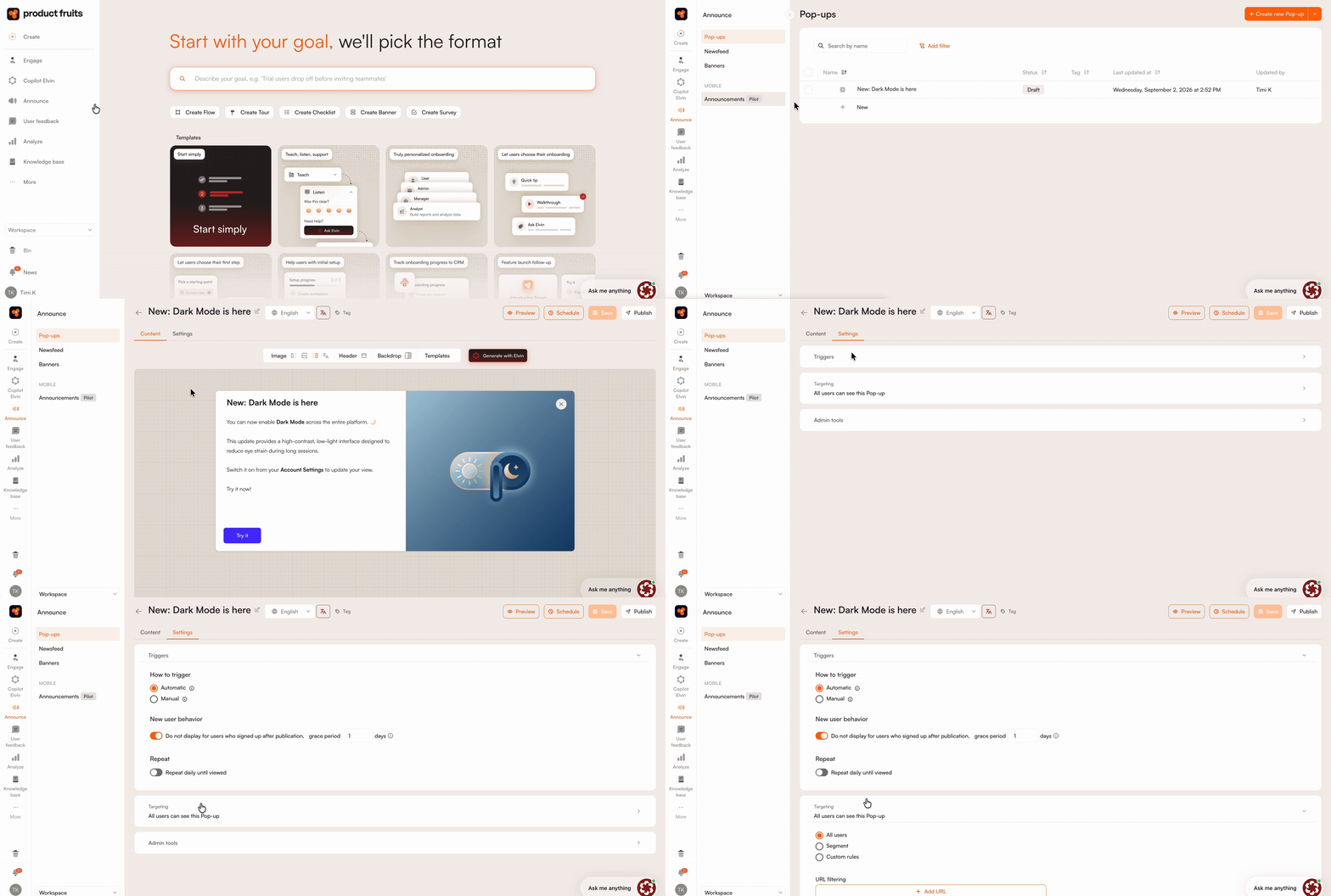
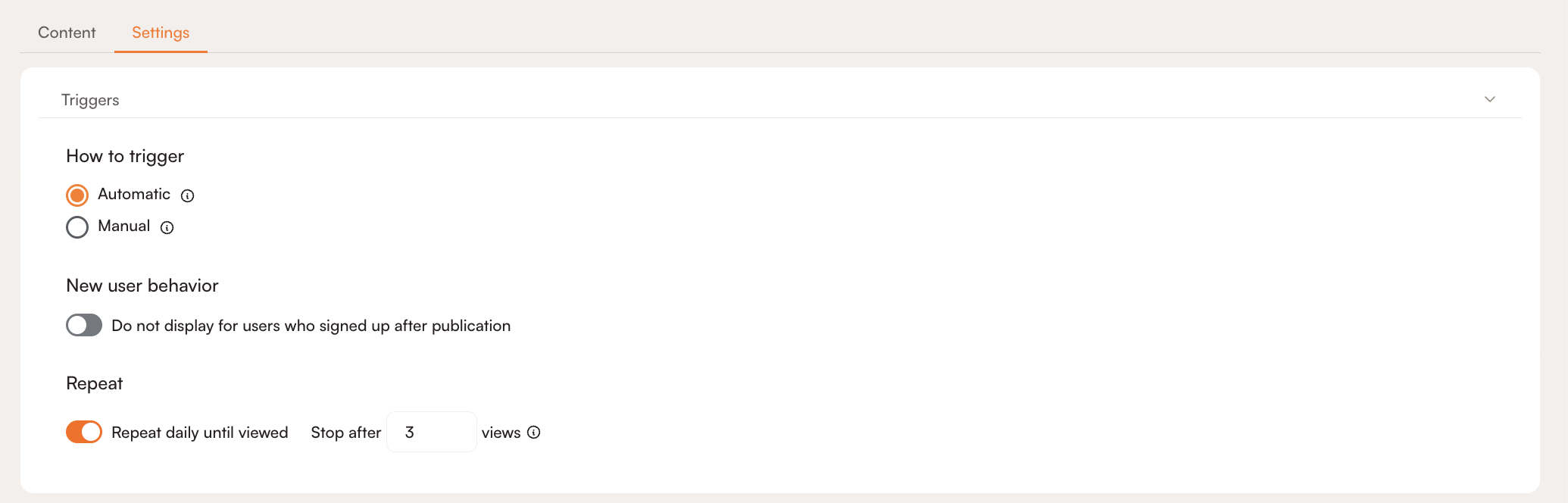
Triggers
This setting decides whether your Pop-up or Banner shows up on its own or waits for a cue from your application. Available for Pop-ups and Banners only.
- Automatic: The Announcement appears as soon as an eligible user matches its targeting and URL rules. No extra work needed on your end.
- Manual: Your application decides when to show it. You can trigger it yourself using the Product Fruits JavaScript API. Check out the Announcements API documentation for the implementation details and for help finding your Announcement ID.
Newsfeed items don't have this setting. Once you publish one, it simply becomes available in the Newsfeed based on its new-user and targeting settings.
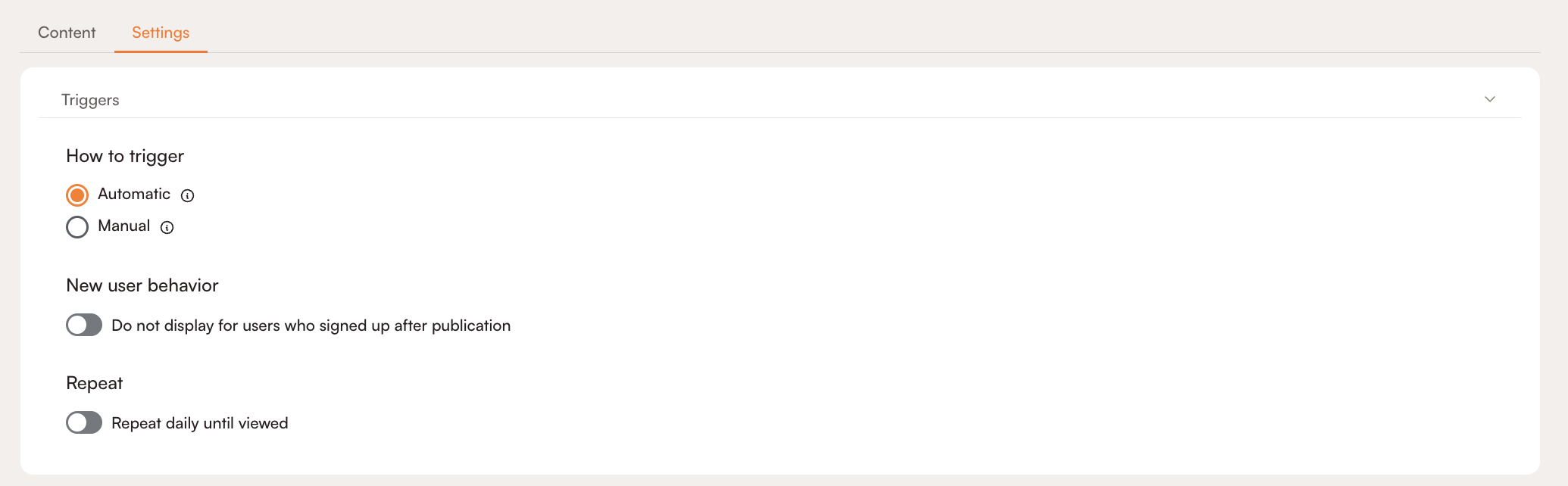
New User Behavior
Turn on the Do not display for users who signed up after publication toggle if you'd rather not show an Announcement to people who joined after it went live.
Product Fruits figures out someone's signup date from the signUpAt property your application sends when identifying that user. And "after publication" refers to when that specific Announcement (or Newsfeed item) went live, not some broader campaign date.
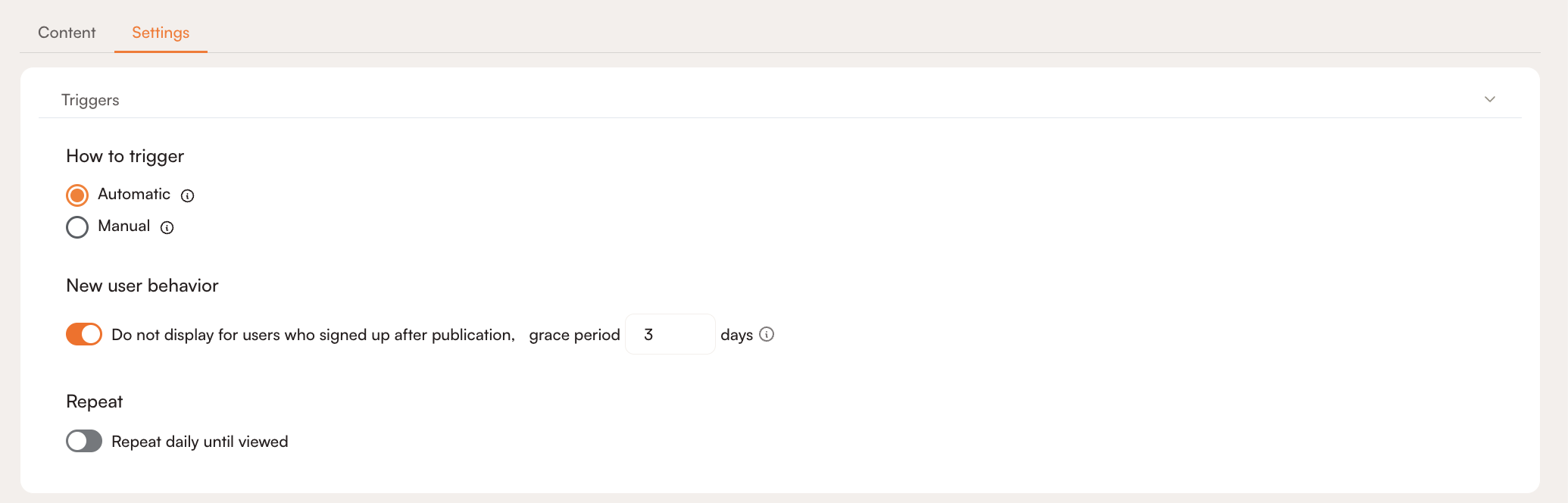
Grace Period
If you don't want the cutoff to be too strict, you can set a grace period. This extends the signup cutoff by a number of days, so users who sign up shortly after publication can still see the Announcement.
For example:
- A Newsfeed item is published on September 3, 2026.
- The grace period is set to 3 days.
- A user signs up on September 5, 2026. They'll still see the item, since that falls within the three-day window.
- If the grace period had been just one day instead, that same user would have missed it.

Repeat
Available for Pop-ups and Banners only.
Turn on Repeat daily until viewed to show the Announcement again on following days until the user views it. A view counts as an interaction, meaning the pop-up or banner was dismissed, the CTA button was pressed, or any other interaction took place.

Use Stop after to cap the number of views (interactions) it repeats for. Once that number is reached, Product Fruits stops showing it.
Newsfeed items don't need this, since published items just stay put in the Newsfeed for users to find whenever they check it.
Targeting
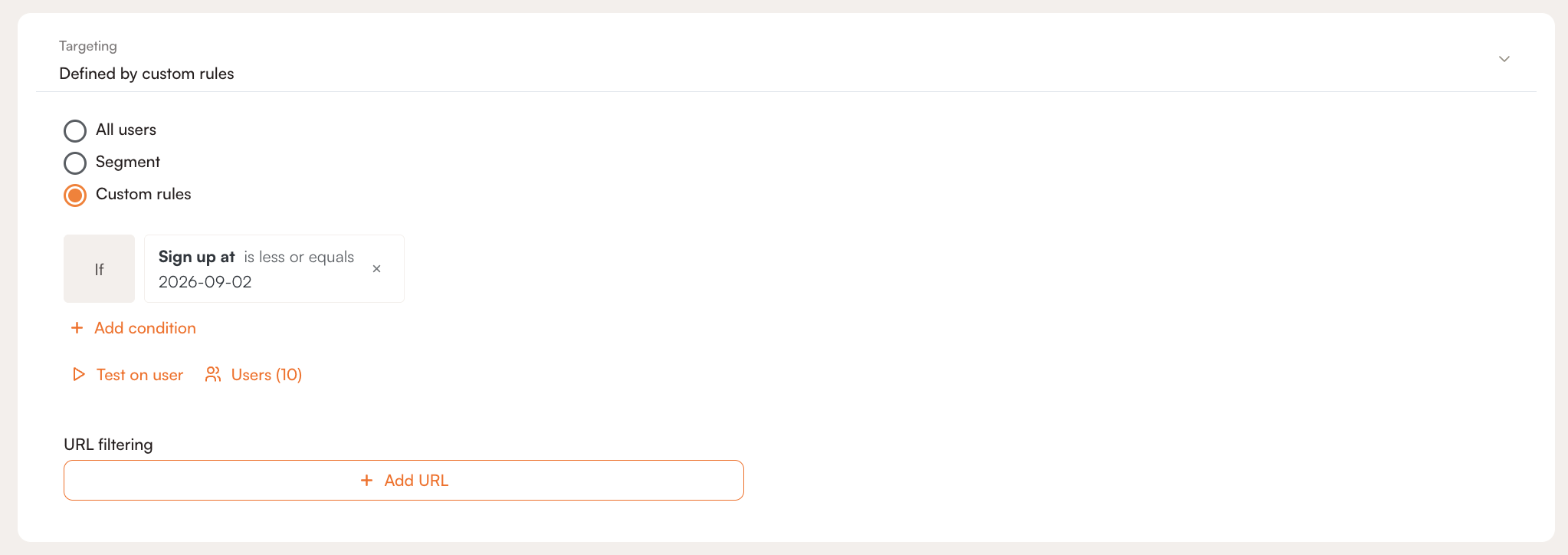
Decide exactly who gets to see the Announcement:
- All users: Show it to everyone who's eligible.
- Segment: Show it only to users in an existing segment. Check out the Segmentation article if you'd like a refresher on creating one.
- Custom rules: Set up targeting conditions just for this Announcement. You can test these rules against a specific user before publishing, testing won't actually show the Announcement to that user, it just checks whether they'd match the eligibility criteria. You'll need to save the Announcement before you're able to test it on a user. To understand all the custom properties and what each operator does, check out the Segmentation article.
For Newsfeed items, targeting controls what shows up in the Newsfeed inside your product. It doesn't affect whether the item appears in the Public Knowledge Base, that's separate.
URL Filters
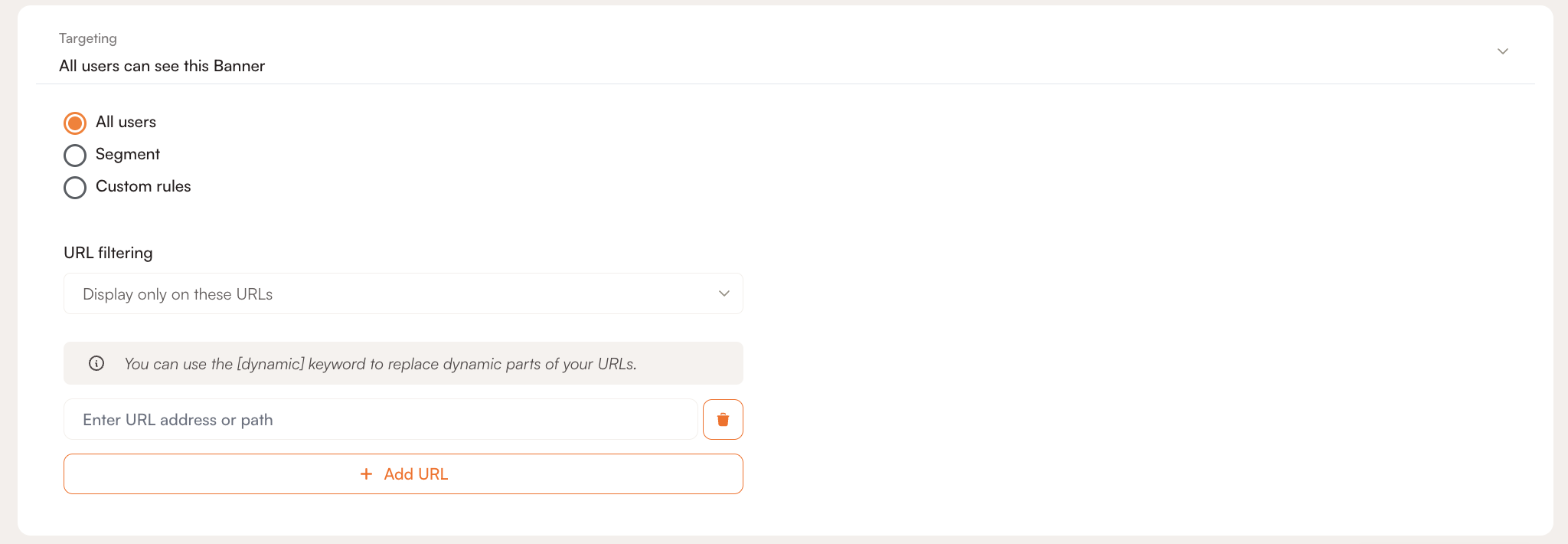
Control where the Announcement is allowed to appear, either showing it only on certain URLs or hiding it on specific ones.
Admin Tools
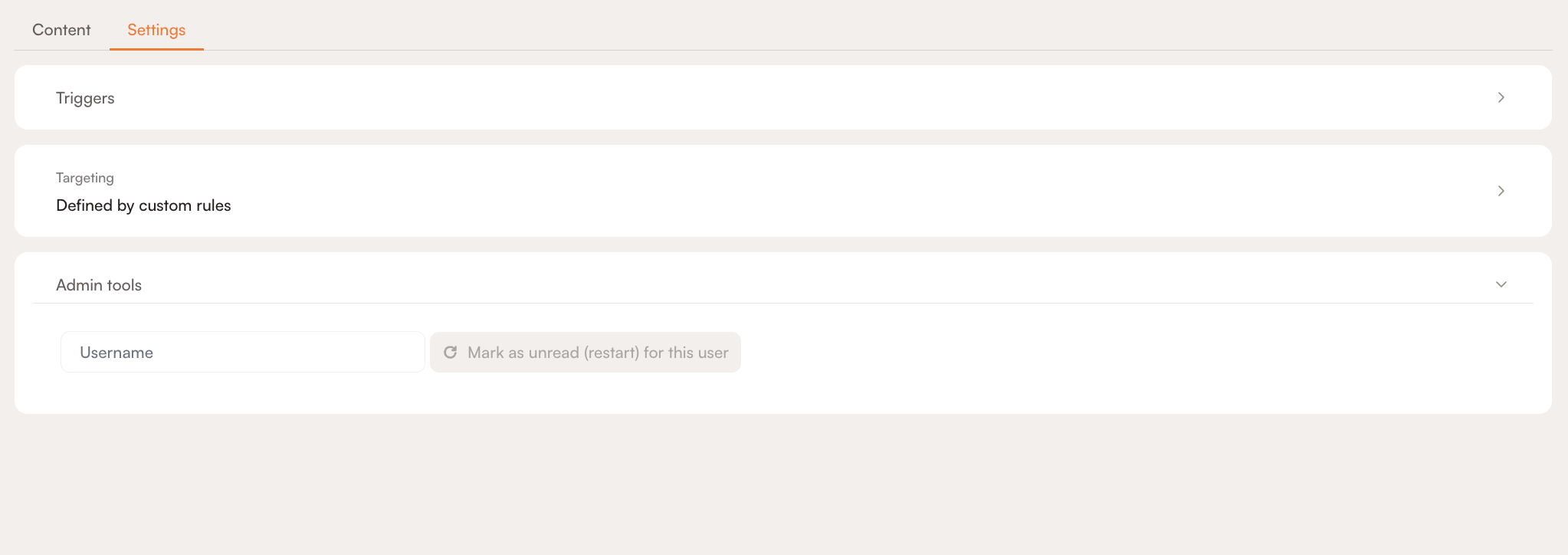
Mark as Unread (Restart) for This User
Need to show an Announcement to someone again? Enter their Product Fruits username and select Mark as unread (restart) for this user. This resets their read state, so you can retest the Announcement or make it available to them again, even if they've already seen it.