
HubSpot Flow Step
The HubSpot Flow step updates or creates a contact or company in your HubSpot portal while a user moves through a Flow. Use it to send information collected during a Flow, such as a survey answer, plan selection, or onboarding milestone, directly to your CRM.
The step runs on Product Fruits servers, so the end user does not see the record being updated.

The HubSpot Flow step is available only on the Business plan. This feature is currently in Early Access. Its functionality may change, and you may encounter occasional issues while using it.
Set Up the Connection
Only Product Fruits workspace Owners can create or edit connections. Anyone who can edit a Flow can select an existing connection by name, but they cannot see its private app access token.
The HubSpot private app must have permission to read and update every object you intend to use. Product Fruits also reads the available HubSpot properties to populate the field selectors in the Flow step.
Create a Private App in HubSpot
A HubSpot Super Admin must create or access the private app.
- In HubSpot, create a Private app for the Product Fruits connection.
- Grant the app read and write access to the objects you intend to use:
- Contacts and their properties
- Companies and their properties
- Copy the private app access token. HubSpot private app tokens start with
pat-. - Store the token securely.
See HubSpot’s private app documentation for detailed setup instructions.
Create the HubSpot Connection in Product Fruits
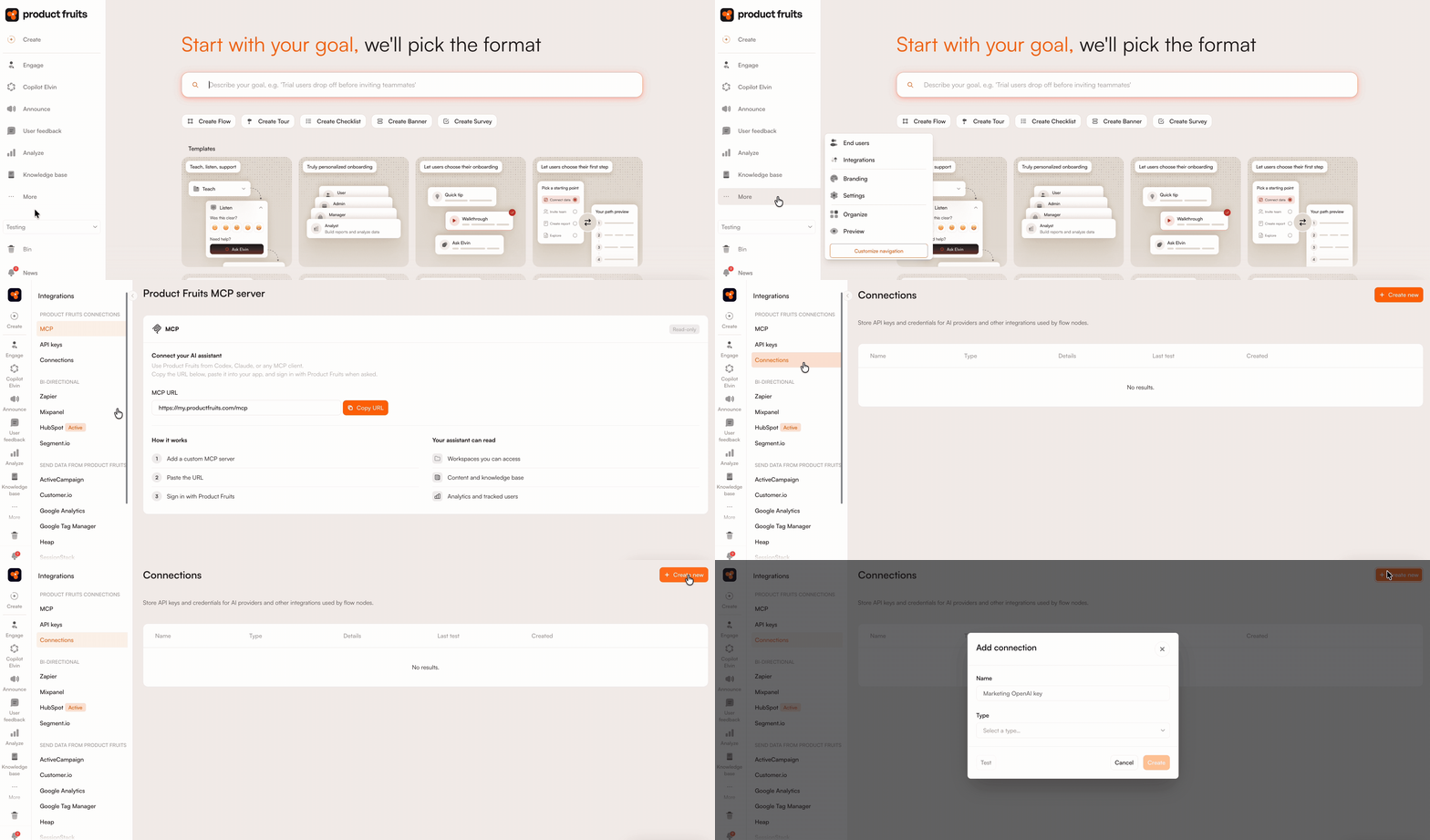
- In Product Fruits, go to More → Integrations → Connections and click Create new.
- Enter a descriptive connection name and select HubSpot as the connection type.
- Paste the token copied from HubSpot into Private app access token.
- Click Test to verify that Product Fruits can connect to HubSpot and read the required objects and properties.
- If the test succeeds, click Create.
Configure the HubSpot Flow Step
- In the Flow editor, add the HubSpot step from the Advanced (Pro) section and click Edit.
- Select the HubSpot connection the step should use. The remaining fields stay unavailable until you select a connection.
A new HubSpot step is configured to update a contact matched using {{user.email}} by default.
Choose the Object and Action
Under Object, select the type of HubSpot record the step should work with:
- Contact
- Company
Changing the object clears the matching configuration and any property rows you already added.
Next, select an Action:
- Update existing record: Updates a record only when Product Fruits finds a match. You can separately configure what happens when no matching record exists.
- Update or create (upsert): Updates the matching record or creates a new one when no match is found.
Choose How to Find the Record
Under Matching options, use Find record by to select the unique property Product Fruits should use to locate the HubSpot record.
For contacts, you can use:
- HubSpot record ID
- The internal name of a custom HubSpot property marked as unique
For companies, you can use:
- HubSpot record ID
- The internal name of a custom HubSpot property marked as unique
When using a custom unique property, enter its internal name, not the label displayed in HubSpot.
Matching by HubSpot record ID can only update a record that already exists. It cannot be used to create a new record because the ID is assigned by HubSpot when the record is created.
See HubSpot’s documentation on unique record identifiers for more information.
Set the Match Value
The Match value tells Product Fruits which contact or company to look for. Choose where the value should come from:
- User property: Select one of the user’s Product Fruits properties.
- Enrollment variable: Select a variable stored in the current Flow enrollment.
- Fixed value: Enter the value directly.
Product Fruits resolves the selected value separately for each user when the Flow runs.
Map the HubSpot Properties
Under Fields to update, add at least one property:
- Select the HubSpot property you want to update.
- Choose where Product Fruits should get the Value:
- User property
- Enrollment variable
- Fixed value
- Click Add field to update another property.
Archived, read-only, and calculated HubSpot properties do not appear in the property selector.
For dropdown and other enumeration properties, enter the option’s internal value. Do not enter the label displayed in the HubSpot interface.
Decide What Happens When a Value Is Empty
Open Advanced on a property row and configure If value is empty:
- Skip (leave unchanged): Product Fruits does not send an empty value, and the existing HubSpot property remains unchanged. This is the default.
- Clear (send empty): Product Fruits sends an empty value and clears the existing HubSpot property. When this option is selected, the row does not require a Value.
Use Placeholders
A Fixed value in a property row can contain placeholders. Use them to include user information, Flow variables, or output from an earlier step.
Type {{ in the field to select an available placeholder. See Using placeholders for the supported values and instructions on adding fallback text when a value is unavailable.
Choose What Happens When No Record Is Found
The If record not found setting appears only when the action is set to Update existing record.
Choose one of the following options:
- Take failure branch: Product Fruits does not write anything to HubSpot. If you connected a failure branch, the Flow continues along that path. This is the default.
- Create a new record: Product Fruits creates a contact or company using the properties mapped under Fields to update.
- Fail the step: Product Fruits does not write anything to HubSpot, and the step is marked as failed.
When the action is set to Update or create (upsert), a missing record is always created, so this setting is not displayed.
Handle Failed HubSpot Writes
Enable Failure branch and connect it to another step if you want the Flow to follow an alternative path when Product Fruits cannot update or create the HubSpot record.
If the write fails, the Flow follows the connected failure branch instead of stopping.
Debug the HubSpot Step
Use the HubSpot step’s debug logs when a record is not created or updated as expected, or when the Flow follows the failure branch.
Open the HubSpot step in the Flow editor and select Debug logs. Each row represents one execution of the step.
Review the Execution Details
Select a run to view its details:
- Action: The name assigned to the HubSpot step.
- When: The date and time the step ran.
- User: The Product Fruits username associated with the Flow execution.
- Enrollment: The identifier of the user’s enrollment in the Flow.
- Run: The identifier of this particular step execution.
- Connection: The identifier of the HubSpot connection used for the request.
Use the copy icon beside the Enrollment or Run identifier when you need to share it with Product Fruits support.
Request and Response
The Request panel shows the request sent to HubSpot. The Response panel shows the response code and how long HubSpot took to respond.
Request and response headers and bodies are not stored for successful executions.
Find and Filter Runs
Use Search by username to find executions associated with a particular user.
Use the Status filter to narrow the list by its overall outcome:
- All: Every execution, regardless of its outcome.
- Success: Executions where the HubSpot record was created or updated successfully.
- Failed: Executions where Product Fruits could not complete the HubSpot write.
- Skipped: Executions where Product Fruits did not send a request to HubSpot.
To investigate unsuccessful executions, click Add filter → Error type:
- All: Every error type.
- Configuration: A required setting is missing or invalid, or a required value did not resolve correctly.
- Rejected by provider: HubSpot received the request but rejected its contents. This can happen when a property value is invalid.
- Authentication failed: HubSpot could not authenticate the private app. The token may be incorrect, revoked, or no longer valid.
- Permission denied: The private app does not have the required access to the selected object or property.
- Not found: HubSpot could not find the record, object, or property required by the step.
- Rate limited: HubSpot temporarily rejected the request because too many requests were sent.
- Send limit reached: Product Fruits reached its outbound action limit and did not send the request.
- Provider unavailable: HubSpot was temporarily unavailable.
- Unexpected error: The execution failed for a reason that does not match another category.
You can combine filters. For example, select Failed under Status and Permission denied under Error type to find failures caused by insufficient private app permissions.
Select the refresh icon in the upper-right corner to load the latest executions.
Limitations
- The HubSpot Flow step supports contacts and companies only. Deals, tickets, and custom objects are not supported.
- This Flow step does not support matching companies by
domain. Use HubSpot record ID or a custom HubSpot property marked as unique. - Matching by HubSpot record ID can only update an existing record. It cannot create a new one.
- Archived, read-only, and calculated HubSpot properties cannot be selected under Fields to update.
- For dropdown and other enumeration properties, use the internal option value rather than the label displayed in HubSpot.
 Need more help? Book a demo with our team of experts.