
Product Fruits MCP Connection
Product Fruits MCP lets you connect Product Fruits to an AI assistant, such as Codex, Claude, Cursor, or another MCP-compatible client.
MCP stands for Model Context Protocol. It is a standard way for AI assistants to connect to external tools and data sources. When you connect Product Fruits through MCP, your assistant can read Product Fruits information your account has access to and help you answer questions about your workspaces, content, flows, knowledge base, Elvin conversations, and tracked users.
For example, you can ask your assistant to review flow performance, find where users drop off, summarize Elvin conversations, search your knowledge base, or look up activity for a tracked user.

Getting Started
In Product Fruits, go to Integrations > MCP.
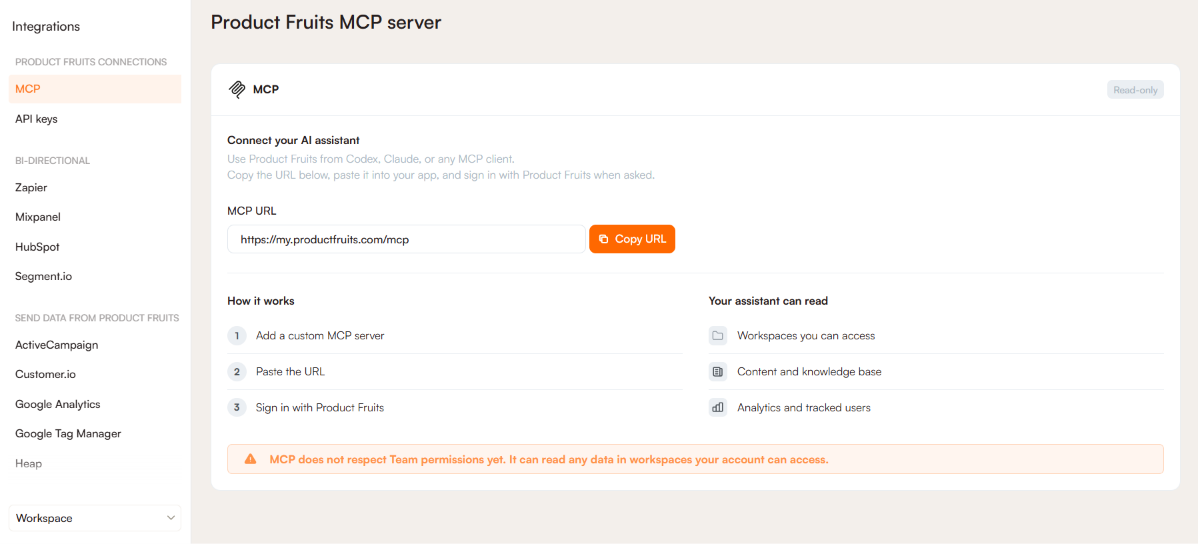
From this page, copy the Product Fruits MCP URL and paste it into your AI assistant or MCP client.
You can also use this server address directly:
Product Fruits MCP uses OAuth sign-in. You do not need to create, copy, or manage an API key.
Your assistant can only access the Product Fruits workspaces and data that your signed-in account is allowed to access. If you do not have access to a workspace in Product Fruits, your assistant will not be able to read it through MCP.
Before You Start
Make sure your AI assistant or MCP client supports:
- Custom MCP servers
- Streamable HTTP
- OAuth sign-in
After adding the MCP server, you may need to restart your AI client or start a new task/session so the assistant can load the Product Fruits tools.
What Your Assistant Can Read
After you connect Product Fruits, your assistant can read Product Fruits information your account can access, including:
- Workspaces and workspace overviews
- Tours, hints, checklists, surveys, flows, custom events, and announcements
- Analytics for flows, tours, checklists, hints, and announcements, including the users who viewed or completed them
- Survey analytics, including aggregated results and individual answers
- Workspace-wide analytics queries across flows, tours, surveys, announcements, custom events, and tracked users
- Knowledge base article lists and article content
- Product Fruits help documentation
- Elvin configuration, labels, topics, and conversation threads
- Tracked users and related activity
Ask Analytics Questions Across a Workspace
Your assistant can also query analytics data across a whole workspace. This helps with questions that go beyond a single flow, tour, or survey, such as comparing items or finding where users drop off.
You do not need to write the query yourself. Ask your question in plain language, and your assistant writes the query, runs it, and explains the result. For example:
- “Which of my flows had the biggest drop-off at a single step last month?”
- “Which announcements got the most clicks this quarter?”
- “How many users triggered my custom event each week since September?”
Your assistant can query:
- Flows and flow steps
- Tours and tour cards
- Surveys
- Announcements
- Button clicks in tours
- Custom events and their properties
- Tracked users and their properties
To check how your assistant got an answer, ask it to show you the query it ran.
Available MCP Tools Cheat Sheet
You usually do not need to type these exact tool names. You can ask your assistant in plain language, for example:
- “List my Product Fruits workspaces.”
- “Show me the analytics for this flow.”
- “Search my knowledge base for billing articles.”
- “Summarize recent Elvin conversations.”
Infrastructure And Workspaces
ping
list_workspaces
get_workspace_overview
get_workspace_overviews
Content And Analytics
list_content_tours
get_content_tour_detail
get_tour_analytics
get_tour_users
list_content_hints
get_content_hint_detail
list_content_checklists
get_content_checklist_detail
list_content_surveys
get_content_survey_detail
get_survey_analytics
get_survey_answers
list_content_flows
get_content_flow_detail
get_flow_analytics
get_flow_users
list_content_custom_events
get_content_custom_event_detail
list_content_announcements
get_content_announcement_detail
get_hint_analytics
get_hint_users
get_checklist_analytics
get_checklsit_users
get_announcement_analytics
Analytics Queries
get_analytics_sql_schema
execute_analytics_sql
Knowledge Base And Documentation
list_workspace_articles
get_workspace_article_detail
get_article_details
search_workspace_kb
search_all_workspace_articles
search_product_fruits_help
Elvin
get_elvin_configuration
list_elvin_conversation_labels
list_elvin_conversations
get_elvin_conversation_detail
Tracked Users
list_tracked_users
get_tracked_user_activity
get_tracked_user_activity_detail
Connect Product Fruits in Codex
- Open Settings > Plugins > MCP servers.
- Click Add server.
- Enter Product Fruits as the name.
- Select Streamable HTTP.
- Paste
https://my.productfruits.com/mcpas the server URL. - Save the server.
- Click Authenticate.
- Complete the Product Fruits sign-in.
- Restart Codex, or start a new task/session.
- In a new task, type
/mcpto confirm that Product Fruits is connected.
Connect Product Fruits in Claude
For Claude Cowork on individual plans:
- Open Customize > Connectors.
- Click + > Add custom connector.
- Enter Product Fruits as the name.
- Paste
https://my.productfruits.com/mcpas the URL. - Click Add, then Connect.
- Complete the Product Fruits sign-in.
- In Claude, click + > Connectors and enable Product Fruits for the task.
After adding the connector, start a new task/session so Claude can load the Product Fruits MCP tools.
Connect Product Fruits in Another MCP Client
You can also use Product Fruits MCP with other clients that support remote Streamable HTTP MCP servers with OAuth.
Use these details:
- Name: Product Fruits
- Transport: Streamable HTTP
- Server URL:
https://my.productfruits.com/mcp - Authentication: OAuth
The exact setup steps may differ depending on the MCP client you use.
Current Limitations
Product Fruits MCP is currently read-only. Your assistant can help you understand Product Fruits data, but it cannot make changes in Product Fruits.
 Need more help? Book a demo with our team of experts.