
Create a Flow
You can create a Flow in five ways. They all end in the same place, a draft Flow on the canvas. The difference is how much of the first version you build yourself and how much Elvin or a template does for you.
- Start from scratch: you build every step yourself on an empty canvas.
- Use a template: you start from a ready-made Flow and adapt it.
- Record with Elvin: you share your screen and explain what you want while you click through your app. Elvin builds a draft from the recording.
- Add cards in bulk: you click the elements you want in the Flow, and Elvin writes the text for each card.
- Migrate a Tour: you turn an existing Tour into a Flow.
Whichever option you choose, the result is a regular draft. You can edit every card, add conditions and branches, and nothing is shown to your users until you publish the Flow.
Start from Scratch
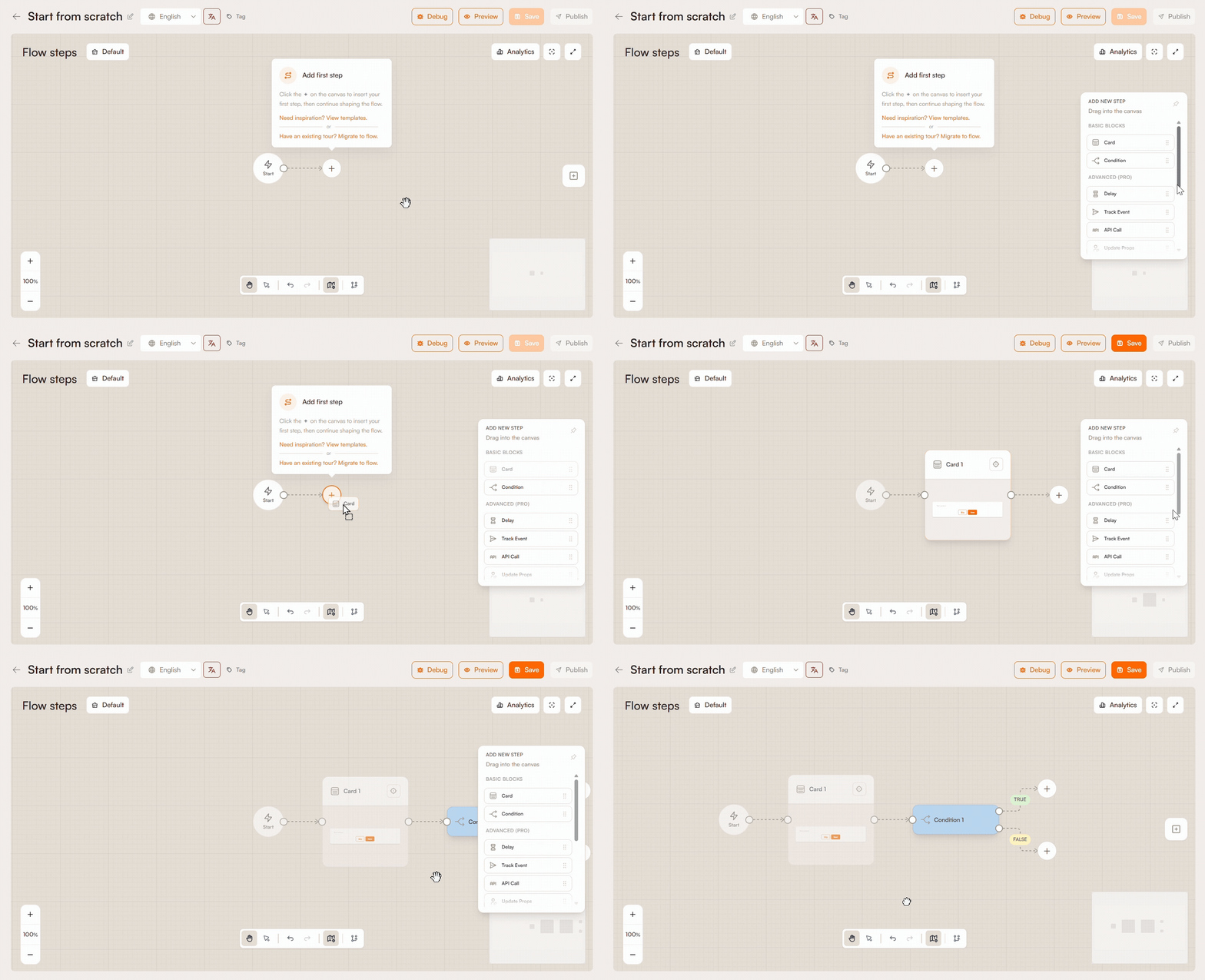
Start from scratch opens an empty canvas, and you have to create each step manually.
- Go to Engage > Flows and click Create Flow.
- Select Start from scratch.
Use a Template
- Go to Engage > Flows and click Create Flow.
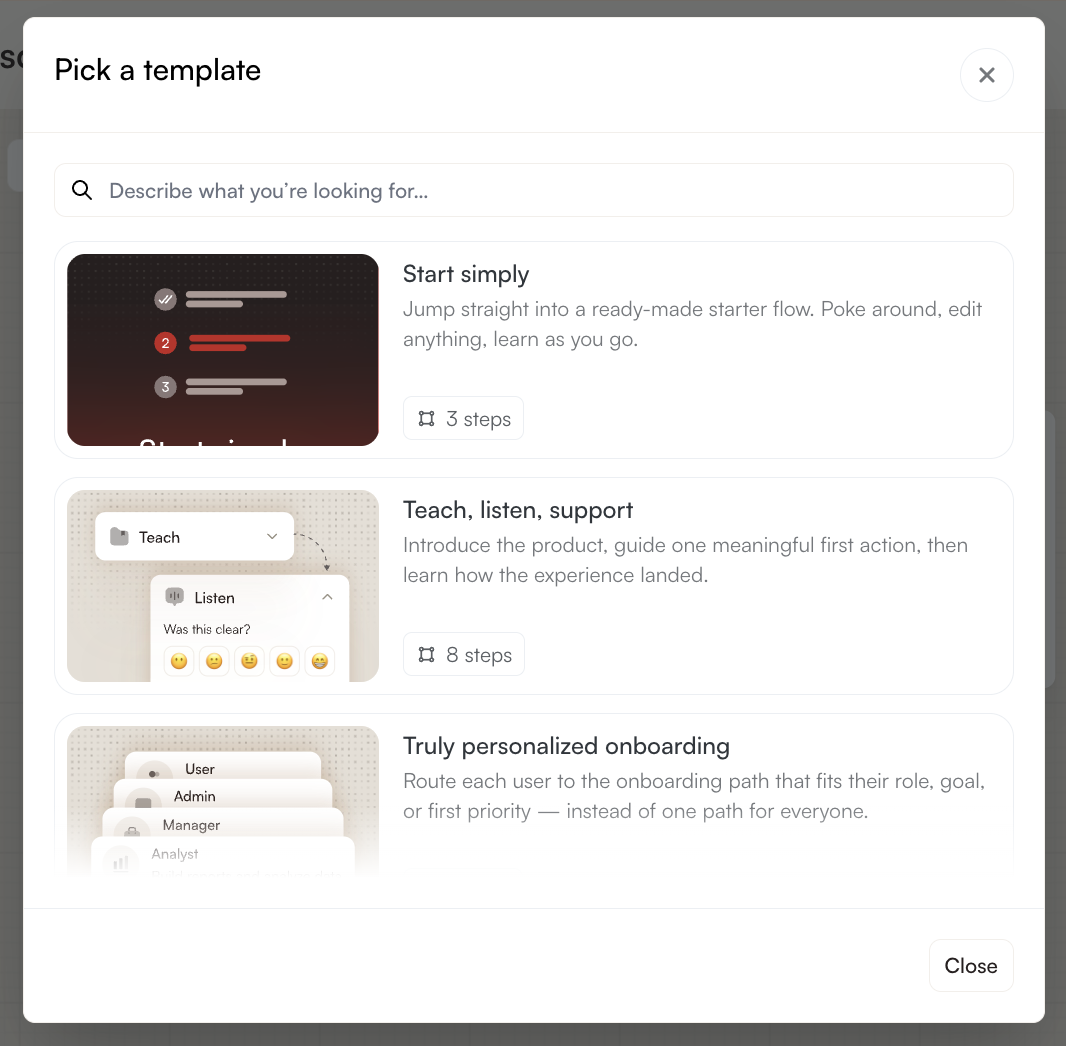
- Browse the 20 templates. Each one has a name, a description and a short note that explains its steps.
- Pick a template. The Flow opens on the canvas with its steps already in place.
A template is only a starting point. Change the text, add or remove steps, and adjust it however you want.
Already on an empty canvas? Click Need inspiration? View templates.
Record With Elvin
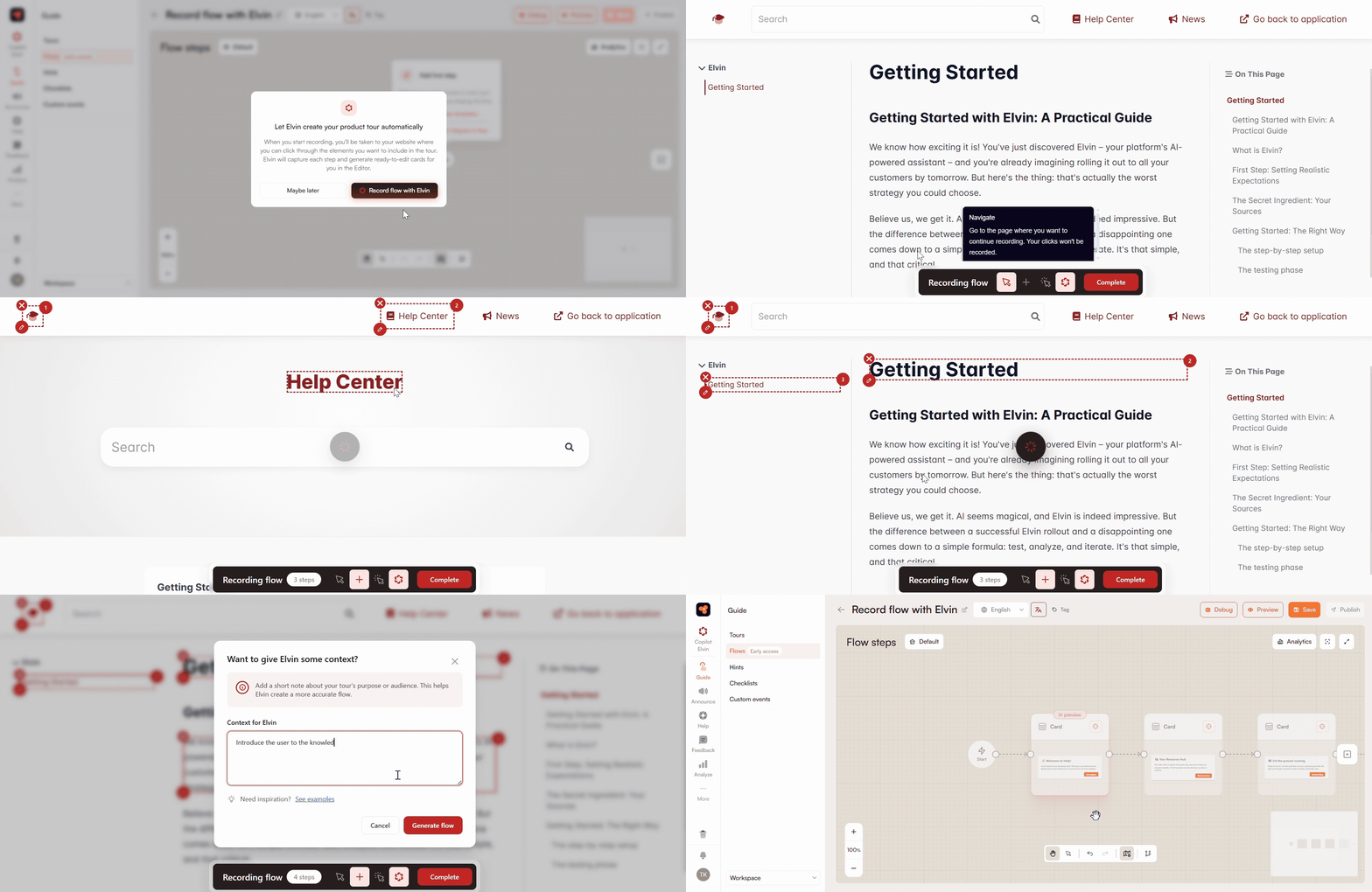
Share your screen, click through your app and tell Elvin what the Flow should do. Elvin turns your recording into a draft Flow you can edit.
- Go to Engage > Flows, click Create Flow and select Record with Elvin.
- Share your screen. Click Allow screen sharing, then choose the tab Elvin can see.
- Allow your microphone when your browser asks.
- Click Start recording. Recording begins after a short countdown.
- Say what the Flow should achieve. Then click through the screens and explain each step as you go.
- Click Generate flow when you’re done. Elvin builds the draft, which can take a few minutes for longer recordings.
- Review the draft in the editor and edit anything you need before you publish.
While you record, a small recording panel floats over your app. You can drag it out of the way. It shows the elapsed time and whether your microphone is picking you up, and it has these buttons:
- Pause: stops recording both your screen and your voice. Click Resume to continue.
- Start over: deletes the recording so you can begin again. You’ll be asked to confirm.
- Generate flow: stops recording and creates the draft.
If you blocked screen sharing or the microphone: you’ll see Permission needed. Click Try again and allow access when your browser asks.
Add Cards in Bulk
Click the elements in your app that you want to explain, and Elvin writes a card for each one.
- Go to Engage > Flows, click Create Flow and select Start from scratch.
- Drag Add cards in bulk onto the canvas as your first step.
- The editor opens in your app, with a recording toolbar.
- Go to the pages you want to include and click the elements you want to add as steps.
- Click Switch to Editor. The cards appear in your Flow, and you can edit all of them.
The recording toolbar has four controls:
- Mouse icon: move around your app without recording. Your clicks aren’t added as steps, so you can get to the right page without changing the Flow.
- Add step: click elements to add them as steps, in order. Each selected element gets a number that shows its place in the Flow. Hover over a step to remove it, or to tell Elvin what that step should explain.
- Select and go: click a link to follow it. Use this when the next part of your Flow is on another page.
- Enable Elvin generator: when it’s on, Elvin reads the selected elements and the page to write the card text. When it’s off, clicking elements still adds steps, but the cards stay empty and you write the text yourself.
Tip: A short note on a step, like “explain that this filter saves time on monthly reports”, gives Elvin what it needs to write a better card.
Migrate a Tour
- Go to Engage > Flows, click Create Flow and select Start from scratch.
- On the empty canvas, click Have an existing tour? Migrate to flow.
- Pick the Tour from the list and click Migrate to flow.
The Tour’s content moves into the new Flow. The styling may look different, so check it and adjust it with themes if needed.